When I got pre-alpha access to GeneratePress AI, security muscle memory kicked in. I didn’t start with “what can it build?” I started with the questions I ask about every door. What’s the key? What does it open? Who can see it? And what happens when I forget it exists?
I loaded up GeneratePress AI, installed WooCommerce, and added fake customer data. I asked Claude to poke around in customer data. It didn’t. GeneratePress AI has no tools that reach customer data, so there was nothing for it to poke with.
First, what GeneratePress AI isn’t
GeneratePress AI has no AI model of its own. It makes no AI requests and stores no AI keys. Your AI app (Claude Code, Codex, the Claude app) connects straight to your site, and nothing passes through GeneratePress.
That matters more than it sounds. AI keys have to live somewhere, and where they’re stored is often the weak spot. A GeneratePress AI install has no AI key to leak, because it never holds one.
The key opens one door
When you approve an app, your site hands it a key that works only at your GeneratePress AI server address ending in /wp-json/generatepress-ai/mcp. That key can’t sign in to your dashboard. It can’t use the rest of the WordPress REST API. It can’t call other plugins’ tools.
Compare that to a WordPress Application Password, which works across the whole REST API. Same idea, much bigger door. GeneratePress AI limits abilities to GeneratePress and GenerateBlocks.
A few more details that are helpful:
- Every tool checks the WordPress permissions of the approving account on every request. If that account stops being an administrator or gets deleted, its connections stop working.
- Keys only work over HTTPS. Local development sites are the exception.
- Your site stores a fingerprint of each key, never the key itself. Your app gets the key once, when you approve.
The bot builds drafts. You push publish.
New pages, posts, forms, overlays, headers, footers and templates all arrive as drafts. GeneratePress AI can’t publish them. You review them and publish them in WordPress.
Using GeneratePress AI, your AI tool can’t:
- Delete pages or posts, or change custom fields
- Edit existing menus, users, plugins, or themes
- Write raw HTML, CSS or JavaScript
That last one is one to note. The AI builds a JSON object blueprint. That gets validated before handing it to GenerateBlocks. Icons are checked against a safe SVG subset. Malicious JavaScript, especially redirects and card skimmers, is a favorite of attackers. A tool that simply can’t write JavaScript removes an entire category of bad day.
Existing content waits for your yes. Site-wide changes go live on it.
Drafts are the easy part. The harder question is what happens to things that already exist, and to the design layer every page leans on. That’s where the guardrails get tighter, and where to focus your attention.
Changes to existing content, Global Styles, Design Tokens and site settings are staged first. Your AI shows you what will change, and content changes include a private preview link you can open in WordPress. Nothing is saved until you approve it in your AI app. A staged change expires after two hours, and it’s refused if the page changed in the meantime, so nobody gets to approve a stale edit on top of fresh work.
Approved is not the same as draft. An approved edit to an existing page is live on that page. An approved change to a Global Style or Design Token reaches everything built with it, and the AI can publish a new Global Style if you ask. A short list of site settings can change after you approve: site title, tagline, homepage, posts page, logo, site icon and permalinks.
Two more things behave site-wide. If the AI turns on GP Premium’s Font Library or GenerateBlocks Pro’s Overlay Panels, those modules are on for the whole site. And because WordPress has no draft menus, a new menu can show up right away if your theme displays menus automatically.
Lock it down from the Claude side
You don’t have to rely on good behavior. Claude lets you set permissions for every tool a connector exposes. Open Settings, go to Customize, choose your connectors, and open the GeneratePress AI connector. Under Tool permissions, each tool gets one of three settings: allow, needs approval, or blocked. The tools are grouped, and the read-only ones come first.
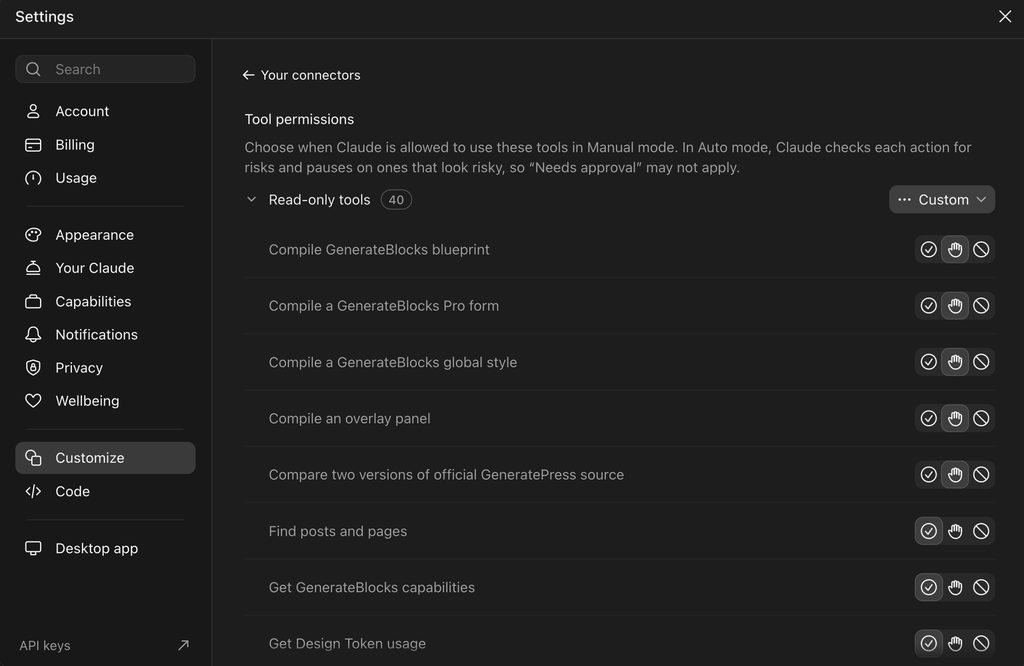
Here’s how I’d set it:
- Read-only tools (finding posts, checking capabilities, looking at Design Token usage): allow. Looking doesn’t change anything.
- Tools that create or change things, and especially the one that applies a staged change: needs approval, so a human clicks yes every time.
- Anything you never want touched, like site settings if you don’t want an AI anywhere near your permalinks: blocked.
One caveat, straight from the screen: these settings govern Manual mode. In Auto mode, Claude checks each action for risks and pauses on the ones that look risky, so “Needs approval” may not apply. For a production site, stay in Manual mode. Other AI apps have their own version of these settings. The principle is the same: you decide which tools run on their own and which ones have to ask.
And when you want to undo something:
- Each approved content edit saves a normal WordPress revision, so you restore it the way you’d restore any other version.
- For a Global Style, ask your AI to restore the previous version.
- To see what’s been happening, ask: “What has GeneratePress AI changed on this site today?”
Where the leash is still in your hand
No tool is airtight. Here’s what’s on you.
Don’t let your AI app auto-approve. The waiting room only works if a human is in it. If your app is set to run tools without asking, it can approve its own staged changes. In Claude, set the tool that applies a staged change to Needs approval, and keep the app in Manual mode, since Auto mode may not ask.
Remember that keys don’t expire. An app keeps access until you revoke it. Settings → GeneratePress AI lists every connected app and when it was last used, and you can also revoke it under Connected AI clients on your WordPress profile. Revoking takes effect immediately. Do this for every app you’ve stopped using. Put it on a calendar if you have to.
Know whose permissions are on the line. You approve the connection while signed in as an administrator, and it works as that administrator, but only through GeneratePress AI’s own tools. That account’s permissions are the ceiling.
Take prompt injection seriously. Your AI app reads things, and some of what it reads was written by strangers: a web page you asked it to research, a pasted review, an email. A sneaky line buried in that text can try to talk the app into doing something you didn’t ask for. GeneratePress AI can’t stop your AI app from being fooled, but it does limit what a fooled app can do here. No publishing pages or posts. No raw code. No deleting. No touching users or plugins. Changes to existing content wait for your approval. The dangerous combination is one you control: auto-approve turned on, plus the same AI app also reading untrusted content from somewhere else.
Know what leaves your site. Whatever the tools return, such as page content, Global Styles and settings, goes to your AI app and its provider (Anthropic or OpenAI, for example). Their terms and your account settings with them apply. Support questions are separate: they send your license key, site address, product and version, and the search terms your AI writes, but not your pages or settings.
Don’t fix a 403 by tearing down the wall
If your firewall blocks the connection, you’ll see a 403, a “Just a moment…” page, or a “Sorry, you have been blocked” message.
The fix is small and specific: allow requests to addresses that start with /wp-json/generatepress-ai/. The docs are clear about what not to do:
- Don’t skip the firewall for a header or user agent. Anyone can send those.
- Don’t make WordPress REST routes public.
- Don’t turn off your security plugin or firewall.
If you only connect from the Claude app or claude.ai, you can allow Anthropic’s address range (160.79.104.0/21) instead of the path, which is an even narrower door. On Cloudflare’s Free plan, Bot Fight Mode can’t be skipped by a rule, so turning it off for the site is the only fix. Weigh that one on purpose.
To check that the door is where you think it is, a request to your MCP server URL without signing in should return HTTP 401 with a JSON body. An HTML page, a redirect, a 403 or a challenge means something is still in the way.
Try it on staging first
Many MCPs suggest limiting activity to staging or development sites. They’re powerful tools with access to everything, which is great for development and troubleshooting. On production, that power can be dangerous.
GeneratePress AI is deliberately not that kind of tool, but a first connection on a staging copy costs you almost nothing, and you’ll learn how the approval flow feels before it matters. Note that the Claude app connects from Anthropic’s servers, so staging needs to be reachable from the internet.
The five-minute checklist
- Approve the connection from an administrator account you’d recognize in an audit.
- In Claude’s tool permissions, set tools that change your site, especially applying a staged change, to Needs approval.
- Review drafts and preview links before you publish anything.
- Allow only /wp-json/generatepress-ai/ in your firewall, not your whole site. Where you can, limit it to IP ranges you’ve added on purpose.
- Revoke AI apps you no longer use, and check the last-used dates.
- Be careful pairing the app that edits your site with one that reads untrusted content.
- Every so often, ask: “What has GeneratePress AI changed?”
It’s okay to let the bots in
AI is incredibly powerful, and we’re seeing users do amazing things with its abilities. It’s okay to let AI tools in, but make sure they are wearing a name tag, carrying one key to one door, and asking before they touch anything that’s live.
Connecting takes a few minutes. Revoking takes one click. Do both on purpose.
The full security details live in the GeneratePress AI docs.
Leave a comment