Site logo

[Support request] Gravatar help / block element help

Home Forums Support [Support request] Gravatar help / block element help

Home Forums Support Gravatar help / block element help

Viewing 13 posts - 1 through 13 (of 13 total)
  • Author
    Posts
  • #2406066
    Patricia

    hey guys hope all is well!

    I am following this tutorial here

    https://docs.generatepress.com/article/block-element-post-meta-template/

    and it worked fine apart that the gravatar doesn’t show up,how can I have it displayed? I already have a WordPress gravatar.

    Also, taking a look at this link, can you guys help me achieve the following:

    – inline social media icons with the post meta?
    – remove the border below the breadcrumbs?
    – show the avatar that is blank at the moment?

    thank you!

    #2406101
    David
    Staff
    Customer Support

    Hi there,

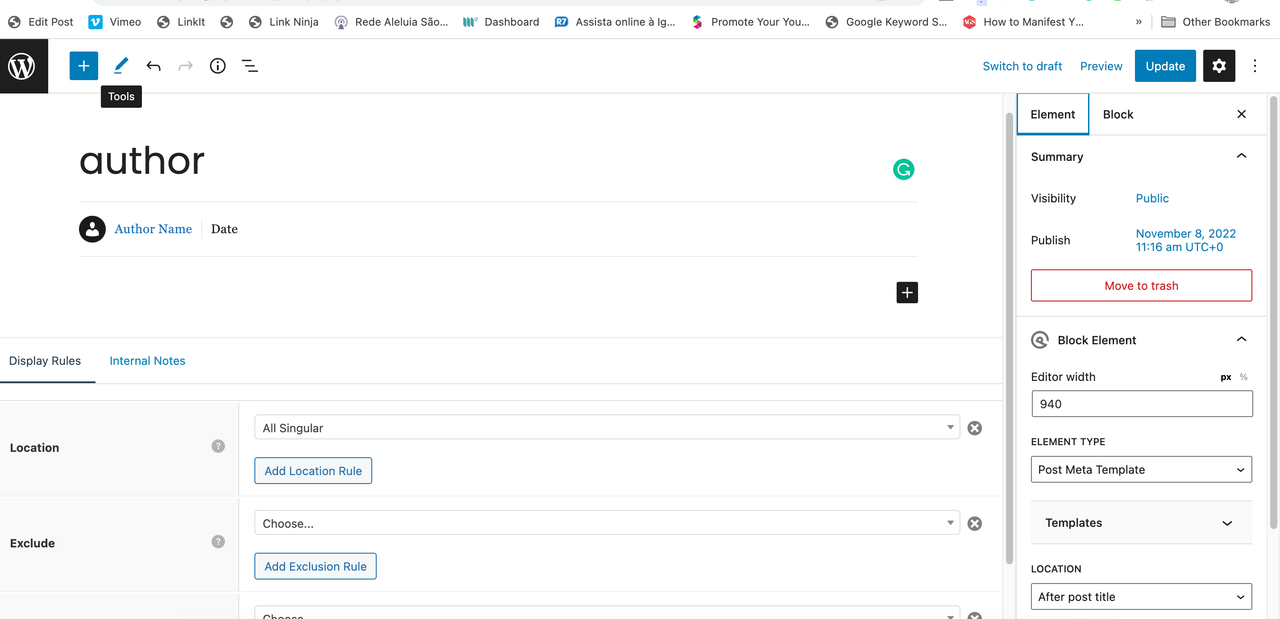
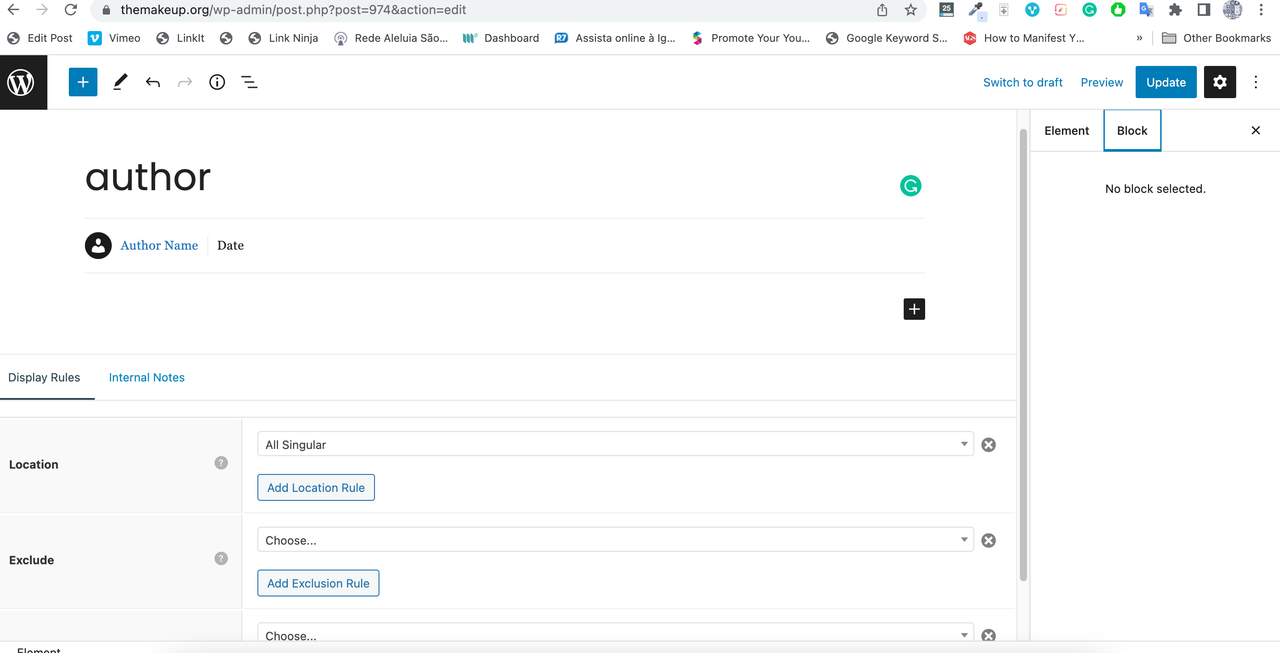
    can you share a screen shot of the Block Element you added the post meta with ?

    #2406139
    Patricia
    #2406200
    David
    Staff
    Customer Support

    Hmmm… looking at the icon in the editor that would mean is set to display the avatar.
    Are you using the same email address for your User Profile as you have set for your Gravatar ?

    #2406208
    Patricia

    Yes. I think gravatar may not be enabled?? thanks

    block

    gravatar

    #2406212
    Patricia

    img 1

    2

    #2406221
    David
    Staff
    Customer Support

    Odd, so GP will automatically remove any HTML for the image if it cannot find one. And that is happening here, so for some reason it cannot find it…..

    Question – are you the only author on the Site ?

    #2406224
    Patricia

    yes I am the only author

    #2406249
    David
    Staff
    Customer Support

    May i suggest NOT using a Gravatar, as they are not particularly great for performance.
    If you
    1. select and delete that GP Image Block
    2. replace it with a GenerateBlocks Image block
    2.1 and set that to display an image from your Media Library.
    2.2 set the Attachment size to Thumbnail, set the Width and Height to what your require.
    2.3 set the Spacing > Border Radius to 100% on all sides.

    #2406821
    Patricia

    I will do it and let you know! thank you!

    #2406889
    Patricia

    hello! it works fine but I cannot have it round on the article 🙂

    #2406894
    Patricia

    Actually is working now! many thankss

    #2407778
    David
    Staff
    Customer Support

    Glad to hear that!!

Viewing 13 posts - 1 through 13 (of 13 total)
  • You must be logged in to reply to this topic.