
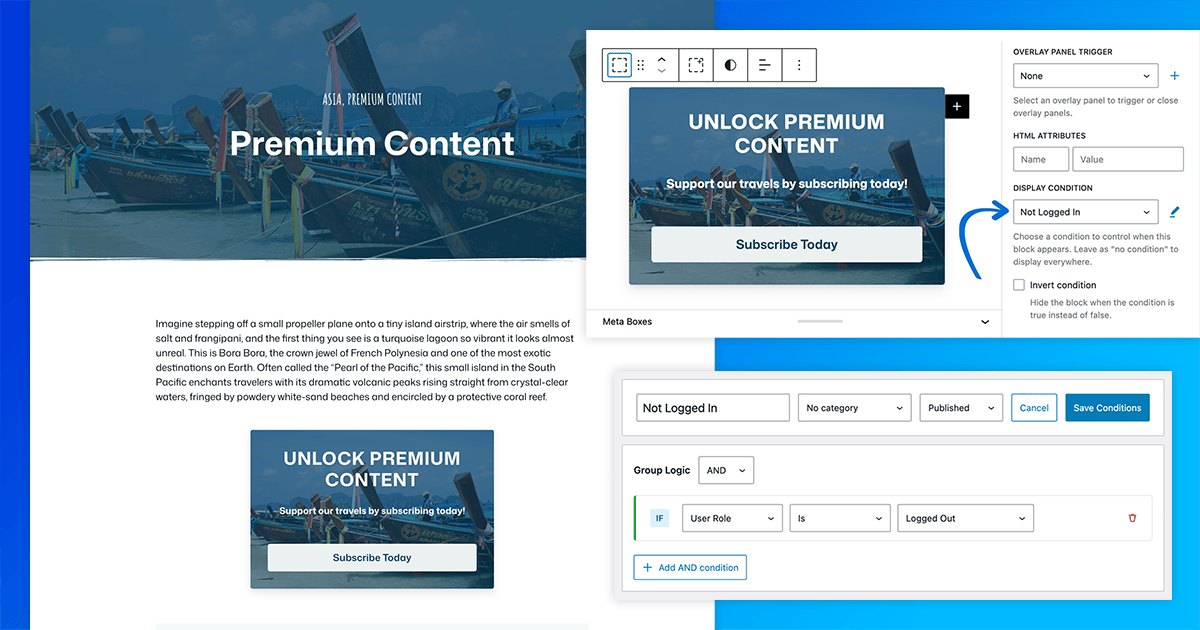

Are you looking to monetize your WordPress site by offering exclusive content to paying subscribers, similar to how platforms like Substack operate? With GenerateBlocks Pro, you can easily set up conditional content that shows premium material only to logged-in users (your subscribers) while displaying a call-to-action (CTA) subscription teaser to everyone else. This approach not only protects valuable content but also encourages visitors to sign up and pay for access.
In this tutorial, we’ll walk you through the process step by step. By the end, you’ll have a system where logged-in subscribers see the full post, and non-subscribers get a prompt to join.
What You’ll Need Before Starting
To make this work effectively, especially for charging users, you’ll need a few key components:
- A WordPress site. Any current version of WordPress, hosted on a provider of your choice.
- GenerateBlocks Free. The free plugin available from the WordPress repository. You can install it by navigating to Plugins > Add New and searching for GenerateBlocks. Then, activate the plugin.
- GeneratePress Theme. The free GeneratePress theme is available by navigating to Themes > Add New, searching for GeneratePress and then installing and activating the theme.
- GenerateBlocks Pro. You’ll need the Pro version for the Display Conditions feature, which allows you to control block visibility based on user status. We recommend getting GeneratePress One, which includes all you’ll ever need to maximize high performance layouts in WordPress.
- A method to collect payments. To collect subscription payments, there are a variety of ways to handle payments. At its simplest, you could use a form plugin like WS Forms or GravityForms to collect subscription payments to your PayPal or Stripe account. For simplicity, we’ll assume logged-in users with a “subscriber” role are your paying members.
- Basic familiarity with the WordPress editor. If you’re new to blocks, GenerateBlocks adds Container, Headline, Button, and other blocks to the WordPress editor, along with a Pattern Library to get started.
Once these are set up, you’re ready to create your subscriber-only post.
Step 1: Create a New Post
- In your WordPress dashboard, go to Posts > Add New.
- Give your post a title, like “Exclusive Tutorial: Advanced Sourdough Starters.”
- Add introductory content that’s visible to everyone, such as a teaser paragraph or image.
This public section sets the hook: let visitors see a glimpse to entice them to subscribe.
Step 2: Add Container Blocks for Conditional Content
GenerateBlocks excels at creating layouts with its Container block, which can wrap other blocks like text, images, or buttons. We’re using Containers so that you only have to set the Condition once, on the parent Container.
- In the editor, insert a GenerateBlocks Container block where you want the subscriber-only content to appear. In the left List View sidebar, rename the Container as “Premium Content” as an easy identifier.
- Inside this container, add your premium content—paragraphs, headings, lists, images, etc. This is the “paywalled” section.
- Insert another GenerateBlocks Container block below for the non-subscriber CTA. Inside this, add a message like “Become a subscriber to access this exclusive content!” along with a button linking to your sign-up page. Rename this Container Block in List View as “Logged Out CTA” for ease of future editing.
You’ll now have two Containers: one for subscribers who have paid and are logged in and one for new visitors who are not logged in. In our example, we have three Containers: content for everyone, premium content, and the CTA.
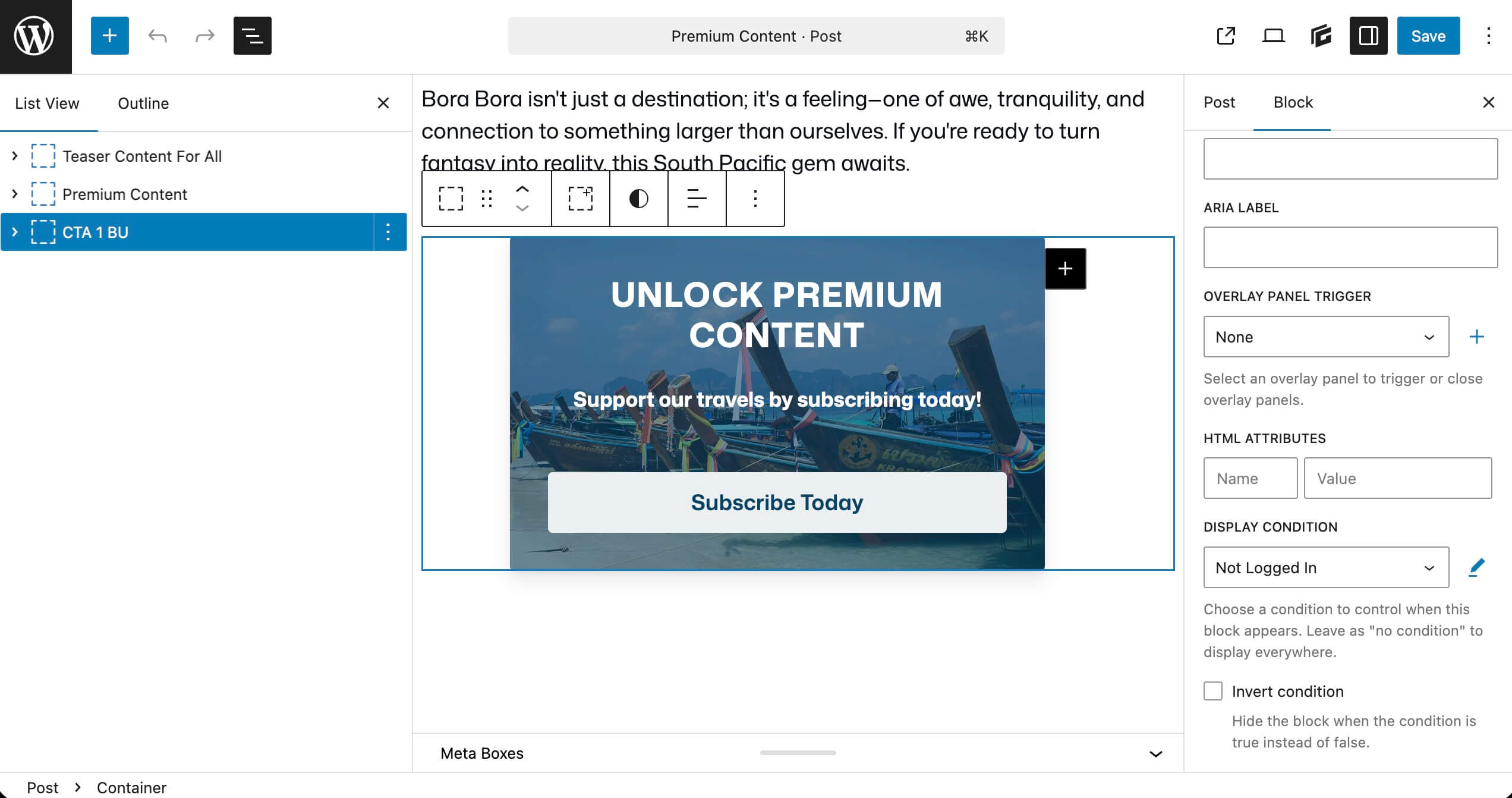
Step 3: Apply Display Conditions to the Containers
Here’s where the magic happens. GenerateBlocks Pro lets you set Conditions directly on blocks in the editor. You can add Conditions to any block, whether a GenerateBlock or a WordPress core block.
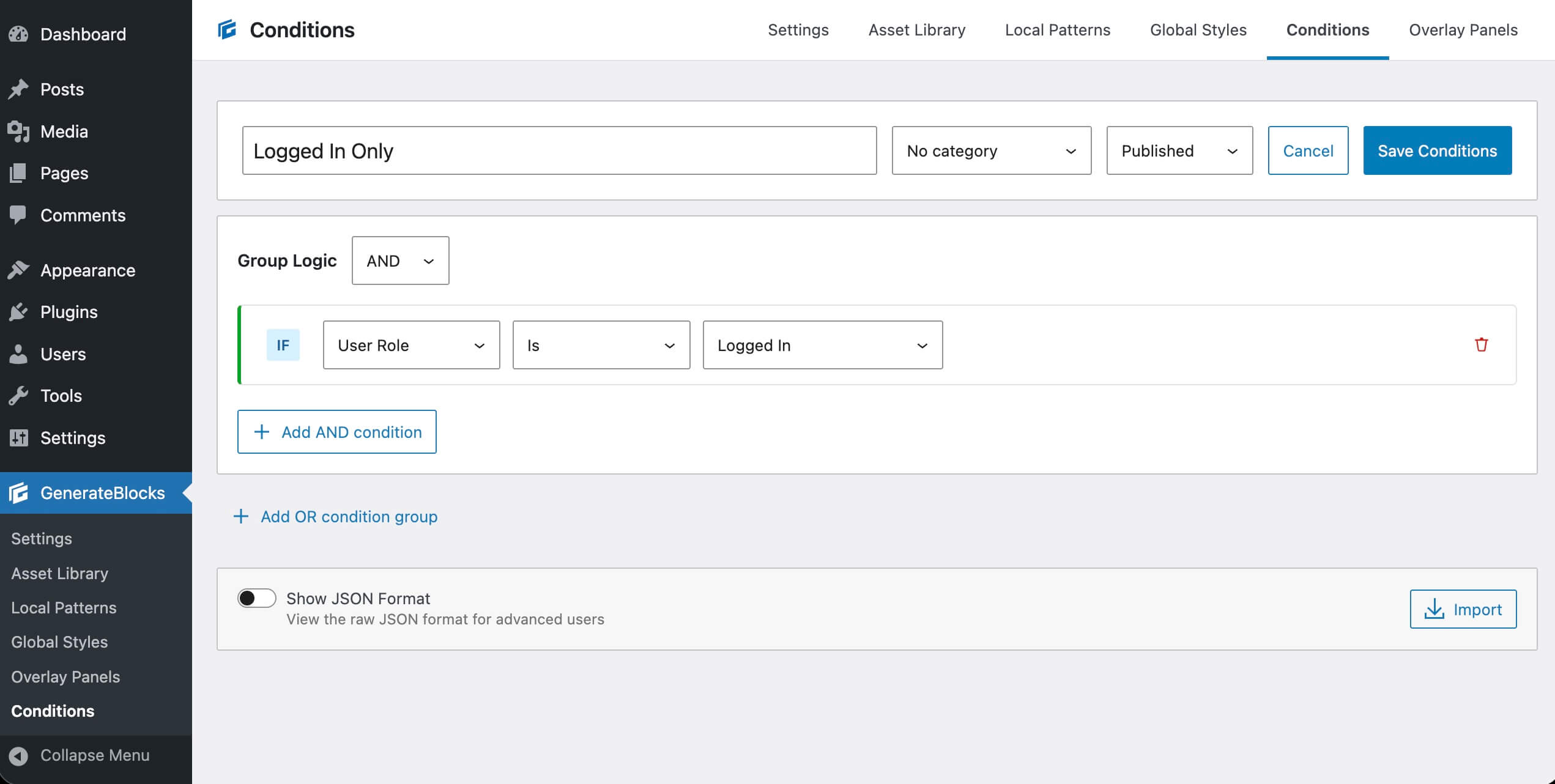
For the Subscriber-Only Container (Show to Logged-In Users)
- Select the first Container block in the editor, where you’re adding the premium/paid content.
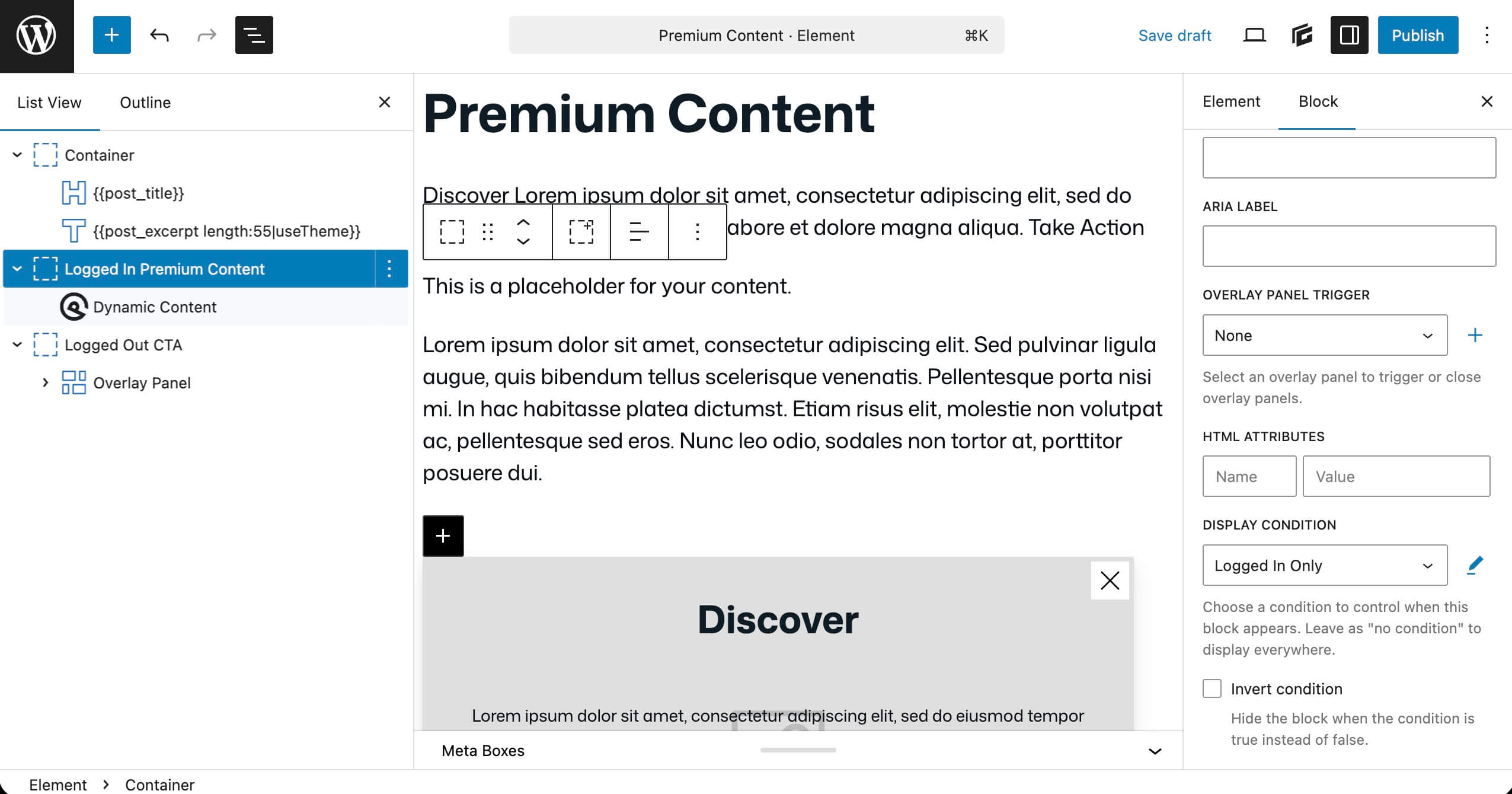
- In the block settings sidebar, scroll to Advanced > Display Conditions.
- Click the dropdown and select Add New.
- In the modal that opens, set up the rule:
- Under Group Logic, keep it as AND.
- Add a condition: IF User Role is Logged In.
- Name the condition (e.g., “Logged-In Subscribers”) and save it.
- Apply the condition to the block. The container will now only display if the user is logged in.
For the Visitor CTA Container (Show to Logged-Out Users)
- Select the second Container block.
- Go to Advanced > Display Conditions.
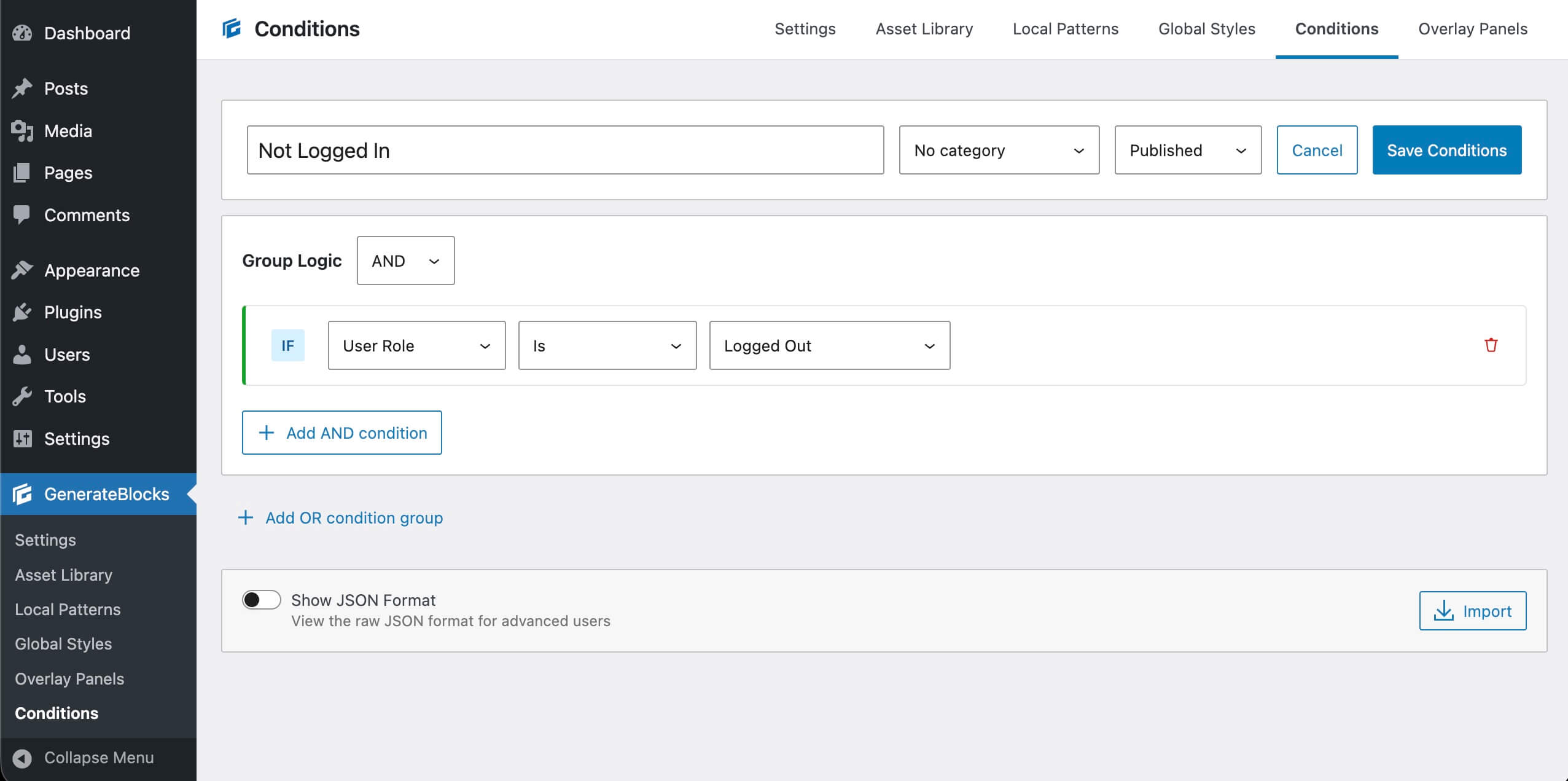
- Add a new Condition.
- Set the rule: IF User Role is Logged Out.
- Name it (e.g., “Logged-Out Visitors”) and save.
- Apply it. This Container will appear only to non-logged-in users, prompting them to subscribe.
Step 4: Style and Customize Your CTAs
Make your content pop:
- Use GenerateBlocks’ styling options to add backgrounds, borders, or animations to containers.
- For the CTA, include a prominent button. Insert a GenerateBlocks Button block inside the visitor container, link it to your subscription page, and style it with colors that match your brand.
- You should also add a link within this container in case a subscriber is logged out. Something such as “Log in if you’re a subscriber” can suffice.
Step 5: Test and Publish
- Preview the post while logged out. You should see the teaser and CTA container, but not the premium content.
- Log in as a subscriber and refresh. The premium container should appear, and the CTA should vanish.
- Test on different devices and browsers to ensure both layouts and Conditions work smoothly.
- Publish the post!
If issues arise, check your Conditions in the GenerateBlocks dashboard under GenerateBlocks > Conditions to edit or debug them.
Use Elements to Automate Subscriber Layouts
When using GeneratePress Premium along with GenerateBlocks Pro, you can also use GeneratePress Elements to design specific layouts for subscriber content, adding blocks setting Conditions within a single-post template.
- Head to Appearance > GeneratePress and activate the Elements module.
- Next, create a new Element. Set the Element type as Block.
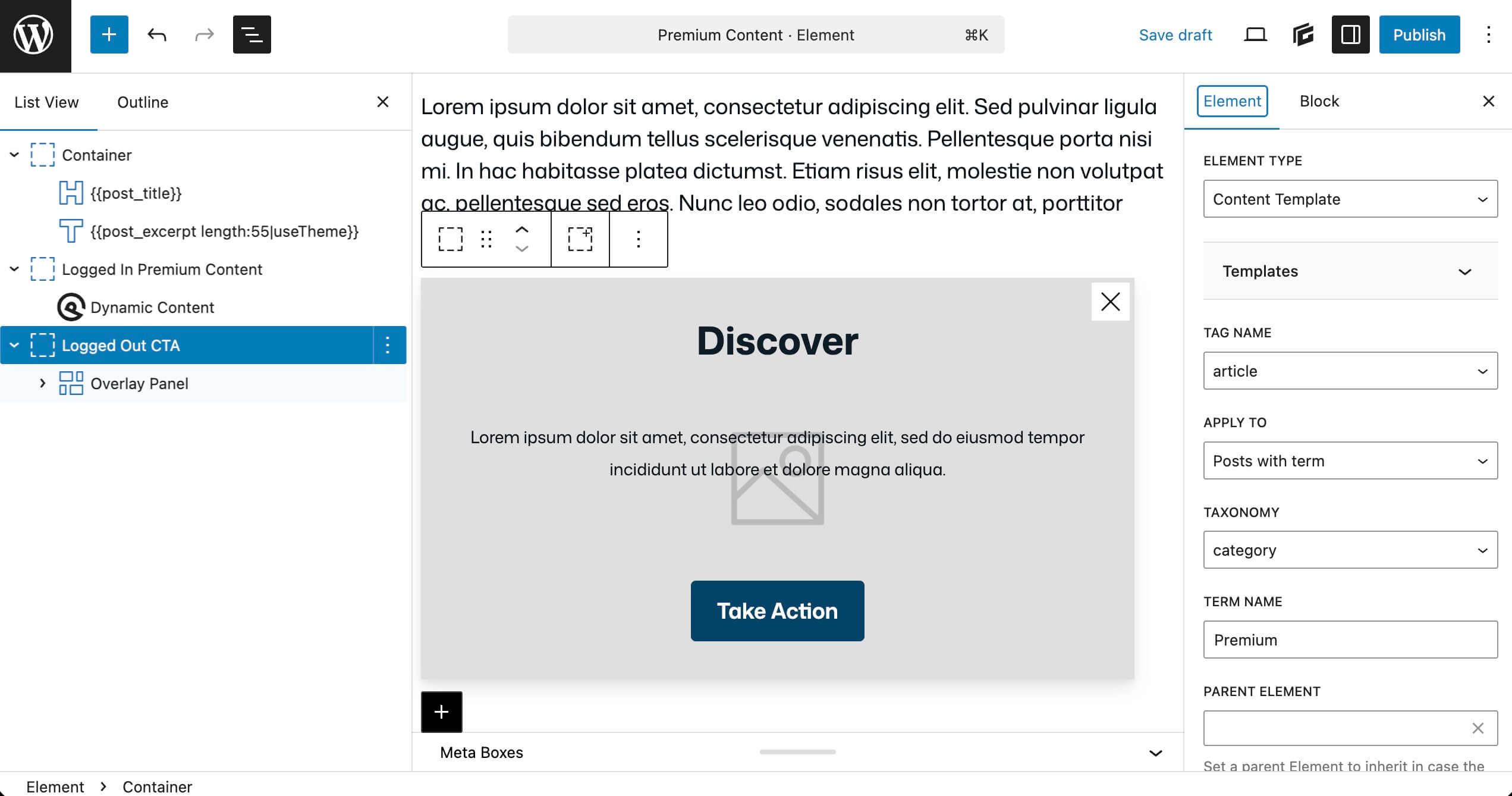
- On the Elements settings, set the Element Type as Content Template.
- Design the template as described above, with a specific Container set with Conditions for logged-in users, and the subscription CTA container set to be shown to logged-out users.
Publishing Free and Paid Posts on the Same Site
If all of your content is planned to be subscriber-only, then you can apply the Content Template to all posts. But if you have some posts planned as free content, you may want to set up a specific taxonomy for subscriber-only content. As you publish content, set a post category for free viewers to use a template without the conditional blocks.
Set a post category as paid subscriber only, and then ensure your template has the Template settings set appropriately. Set:
- Apply To set to Posts with term
- Taxonomy set to Category
- Term Name set to “paid subscriber only” (or whatever category name you’ve chosen)
Advanced Tips for a Substack-Like Experience
- Tease More Content. In the public section, list upcoming exclusive posts to build anticipation.
- Integrate Payments Seamlessly. Use GenerateBlocks Overlay Panels to create a popup containing your payment form when a non-logged-in user sees the second Container. They can subscribe without visiting another page.
- Role-Based Refinements. If you have multiple subscription tiers, create conditions for specific user roles (e.g., show bonus content only to “premium” subscribers).
- Combine with Other Conditions. Layer rules, like showing content only to logged-in users on specific posts or during certain dates.
Conditions are lightweight and evaluated server-side, so they won’t slow down your site.
This setup mimics Substack’s model: Free users get a preview, while paying subscribers unlock the full value. With GenerateBlocks Pro, it’s all done without heavy plugins or custom code.
Unlike Substack and other hosted solutions, however, you keep all of your collected subscription payments less the Stripe or PayPal fees, maximizing profits for your work as a creator.
GeneratePress One gives you everything you need to build highly performant sites on your own platform, all with a simple annual subscription.

Thanks so much for all this. What would you recommend for videos that are shown only to logged in subscribers? Could I somehow control who I allow access to a private video on YouTube or Vimeo for example? What’s the best way to do that for a course I’m creating? This is exactly what I needed so I can try out a few things without committing to anything expensive until I see how it goes. Thanks for all you do.
There are a few options. You could do unlisted YouTube videos, but of course someone could likely figure out the video address and share elsewhere. Vimeo has a setting that lets you limit the domains where a video can be embedded. Go to embedding settings, and choose “specific domains” for where it can be embedded. Add your site’s domain. Then, make sure you put the embed in a GenerateBlock container where you can apply the logged-in condition. Let us know how it goes! Good for you for trying out your idea. I hope it goes well.
As I understand it, we can set a condition to show content to logged-in users with a specific role. Can there also be another condition – that they have purchased a specific WooCommerce product? Since not every logged-in user will necessarily have purchased or renewed their subscription. How can these details be handled with the new functionalities?
While that precise condition is not possible in the UI today, it is possible with custom coding. Open a support topic, and our team could take a look at what you’re hoping to do and provide a custom GenerateBlocks Condition to get that outcome.
Hi. Can this be used to completely hide a pdf file (uploaded to media) containing temple’s member names? Currently we are trying to use WordPress’ inbuilt password protection but it doesn’t protect the pdf file/content from getting indexed by search engines. Any guidance will be appreciated. Thank you.
To completely protect PDF files from being indexed by search engines, you’d have to add a directive on the site. Depending on the server where your site is hosted, you could add some code to your .htaccess file. Some SEO plugins have a setting to disallow indexing of media files as well.
Kathy,
Thank you for prompt response. Looking to protect just one specific PDF file here, not all PDF files uploaded to media.
Anyone with the direct url will still be able to access the PDF file, correct?
Any other pointers will be appreciated.
Yes, anyone with the direct link can still access it. In the examples below, just replace the direct location and name of the file:
For htaccess, you can add this:
Header set X-Robots-Tag “noindex, nofollow”
Alternatively, if it is a brand new file and hasn’t been accessed before, you could edit your robots.txt file and add:
User-agent: *
Disallow: /wp-content/uploads/2025/12/sample-pdf-name.pdf
The robots.txt will only help if it hasn’t been indexed before.
After the change, head to Google Search Console and request reindexing. Under URL Inspection tool find “Request Indexing.” Google will see the new header and eventually drop the page from the index.
Always back up files before changes!
Hi, thank you. The file has not been indexed before. It is a staging site, currently being built.
So, I will try the following:
User-agent: *
Disallow: /wp-content/uploads/2025/12/sample-pdf-name.pdf
Please confirm I don’t need GB conditions for this. All I need to do is edit robots.txt file and password-protect the page using WordPress’ in-built page-password feature, correct?
Thanks again.
Great, yes, then just use the robots.txt to prevent indexing before launch. If you are linking to it anywhere on the site, put the text with the link in a Container Block within the page, and you can set the Condition on that block so that only logged-in users can see the text linking to it.
Please clarify what do you mean by logged-in users. The temple website won’t have user logins. I was thinking of just linking to the pdf file from a password-protected page. Would that suffice?
That would work. Just bringing it back to the intent of this post, which is for subscribed/logged in users.
Hi Kathy,
This is what I need, but one step missing, I’ve to setup automatic subscription expiry or to send reneweal notification, I’ve two tier subscription 6 months and 12 months, for payment in India, I’ll be using our local payment but automate the add subscriber function after payment complete function, but how to limit based on months and send email notification
All of that logic would be managed via your payment system. Stripe subscriptions, PayPal subscriptions, then whatever form or cart-based system you’re using.
This is amazing. Can you create a tutorial on how to add Payment overlays?
Yes, can do. Make sure you’re following us on social media to see when we post it. Thanks for the idea!