
Archived topic
Strange gap in nav
7 replies · Started by Kris on October 21, 2021
Hi guys,
Please review https://sandbox.digpublish.com homepage.
At full width all looks nice, but when I change the browser size smaller a white gap opens up between the top nav. and the main banner photo. See arrow 1.
I have made the banner photo full width with the following code:
<!-- wp:image {"id":208,"sizeSlug":"full","className":"alignfull"} -->
<figure class="wp-block-image size-full alignfull"> </figure>
<!-- /wp:image -->
Not sure if this is the correct way doing this, since also a very small horizontal scroll appears now at the bottom. See arrow 2.
Image here: https://sandbox.digpublish.com/wp-content/uploads/2021/10/gap.jpg

Please advice.
Cheers,
Kris
Hi Kris,
That gap you see is the container padding set on smaller viewports. This setting is found on Appearance > customize > Layout > Container.
It's the one indicated here - https://share.getcloudapp.com/4guPxBpW
That did the trick, mate! Thanks, Elvin!
What about the small sideways scrollbar at the bottom? Why is it there, and can I get rid of it?
Cheers,
Kris
Hi there,
the horizontal scroll occurs when using the Full Width option on a block in the editor. This is due to certain browsers including the vertical scrollbar within the page content.
The best solution is to NOT use the Full width block options.
Instead:
1. Set the pages Content Container to Full Width:
https://docs.generatepress.com/article/content-container/
2. Then use the GenerateBlocks plugin to add Container Blocks to create Full width and Contained sections on your page.
https://docs.generateblocks.com/article/container-overview/
This way you do not need to set the Full Width alignment option on the block.
Hi David,
I'm test driving the GenerateBlocks today,mate.
I'm running the latest GP version but my Container panel looks different from your example.
https://docs.generatepress.com/article/content-container/
This is my panel:
https://trolleyservice.fi/wp-content/uploads/2021/11/container.jpg
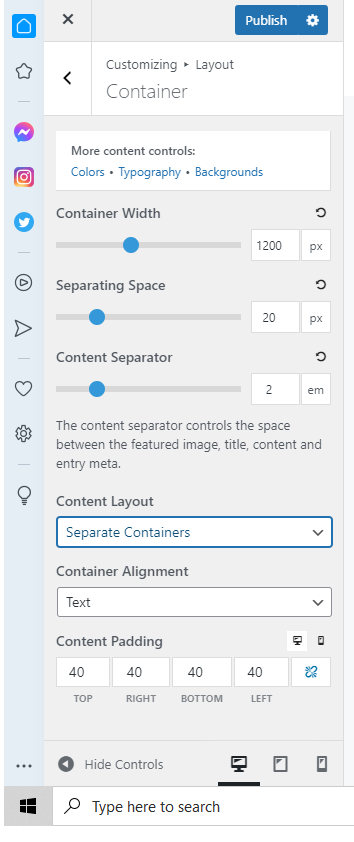
Where/how can I actually set the pages Content Container to Full Width?
Thanks for your help, mate!
Cheers,
Kris
Hi Kris,
I’m test driving the GenerateBlocks today,mate.
Nice one! it's worth learning. :D
This is my panel:
https://trolleyservice.fi/wp-content/uploads/2021/11/container.jpg
This one is the customizer setting.
The setting David pointed out is found on the page's setting within the Block editor when you are editing the page. It's on the page's Layout tab.
https://share.getcloudapp.com/d5u6jXqd
And then you set the Container blocks' setting as well which is also found within the Block editor.
Here's a demo video on locating it - https://share.getcloudapp.com/OAuGvZeZ
Hi guys,
I have a similar problem with another site that does not comply with your earlier instructions.
https://alice-in-wonderland-quotes.com/wp-content/uploads/2022/02/gap.jpg
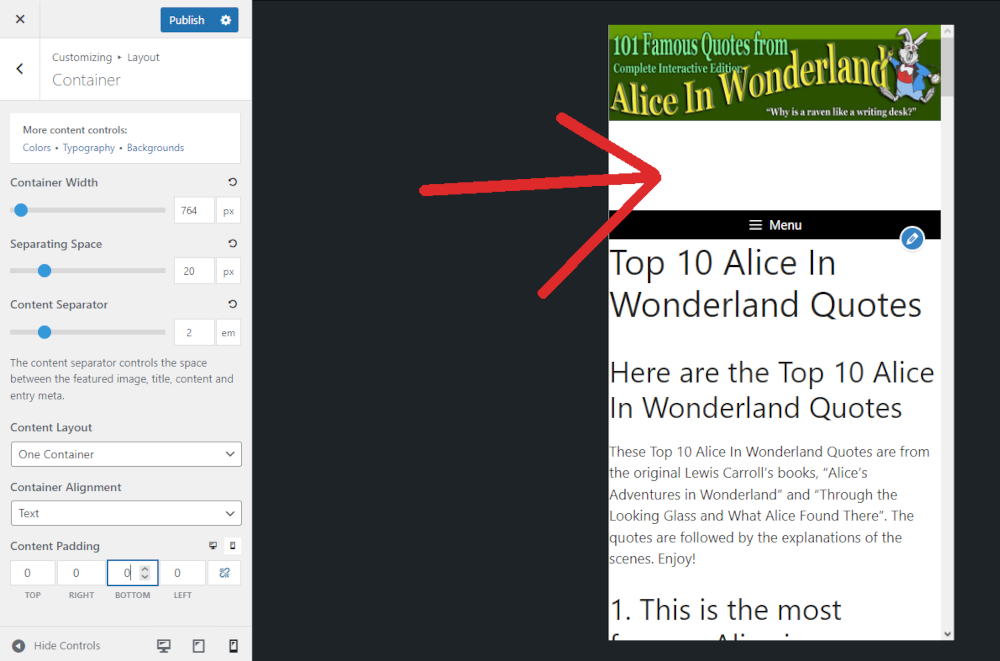
Changing the settings do not seem to make the desired effect.
Pleae advice.
Thanks,
Kris
Hi Kris,
For this one, the issue is w/ how the header element's image is added.
The space you see is actually the padding added to the element for the purpose of making a viewable area for the image.
The aspect ratio created by this padding may fit other viewports but it won't be flexible/adaptable/responsive enough for other viewports.
Consider adding the image through an image block in a Block element - Hook that's hooked inside the header instead of adding it as a background-image so you don't have to do the aspect ratio through paddings.