

GeneratePress and GenerateBlocks are designed to make building a consistent design framework for any WordPress site easier than ever. The GenerateBlocks Pro Pattern Library, coupled with Global Styles, simplifies the workflow and maintenance of high-performance sites. With over 200 mid-fidelity Pro Patterns, including heroes, testimonials, pricing grids, CTAs, and more, the GenerateBlocks Pro Pattern Library ensures cohesive branded designs are a few clicks away.
By defining the built-in .gbp- classes in Global Styles, customizing patterns, and saving them as local patterns, you create a reusable “brand kit” library right in the Pattern Library. One change to a button style updates every pattern that uses it. This workflow saves hours for any site requiring adherence to brand colors, fonts, and layouts.
Global Styles in the GenerateBlocks Pro Pattern Library
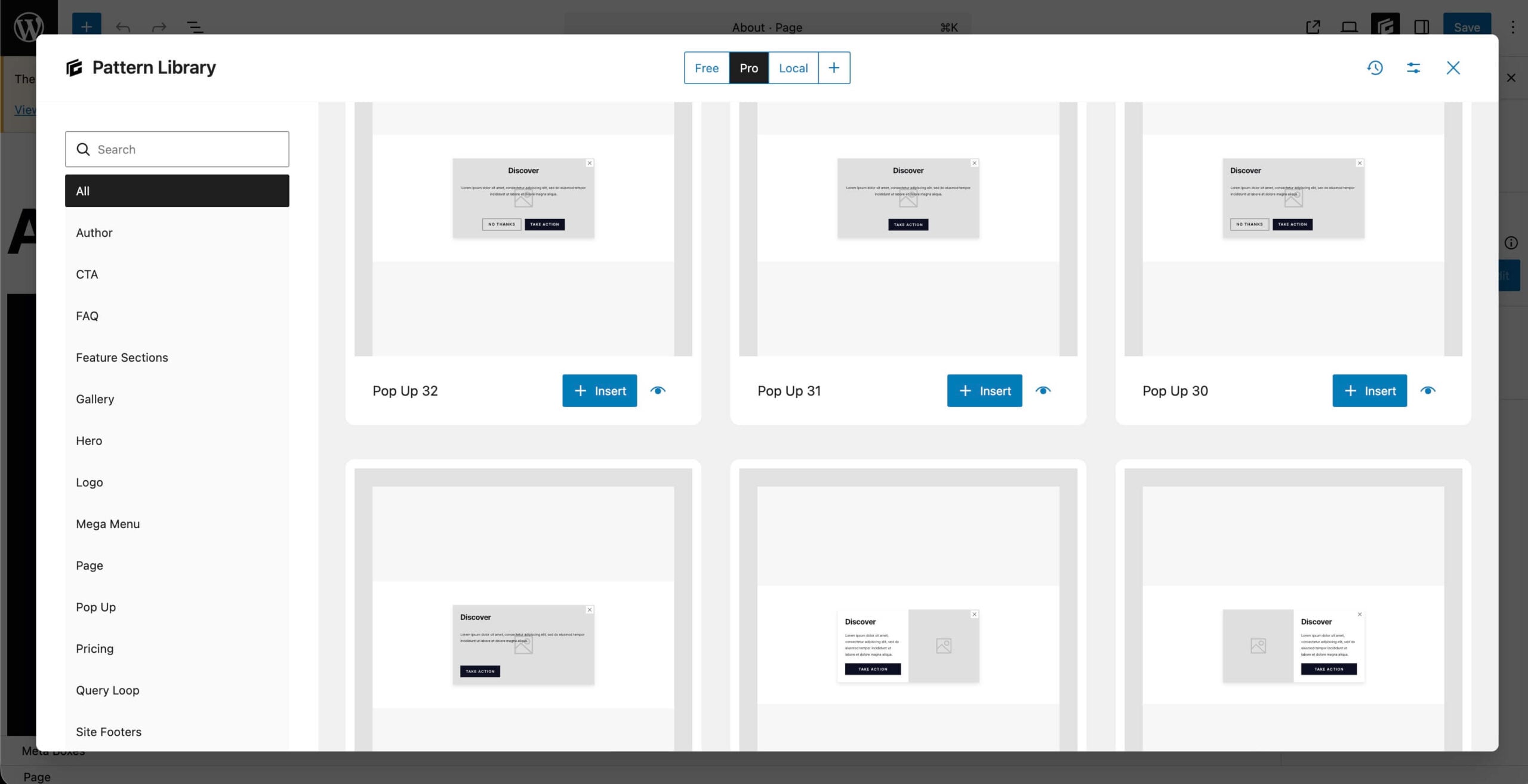
All of the professionally designed patterns in the GenerateBlocks Pro Pattern Library derive their styles from 3 primary sources:
- Theme Styles ( typography / colors )
- Local Block Styles ( limited, eg. backgrounds )
- Global Styles ( core pattern styles )
Out of the box, Pro Patterns will have minimal styling, what we refer to as mid-fidelity. They provide function, layout, and non-opinionated styling. This is where you and global styles come into play.
Pro Patterns and their Global Styles
When you import a Pro Pattern for the first time, GenerateBlocks automatically imports its Global Styles; their classnames are easily recognizable by the gbp- prefix. Some examples include:
- .gbp-button–primary
- .gbp-section
- .gbp-card
For a full breakdown, refer to the Pro Pattern Styles Guide. There, you can find some options for establishing everything from colors to spacing, responsive behavior for various devices, and more. For example, for the gbp-section style, sets the section padding, here’s the CSS the global style comes with:
.gbp-section {

    padding: 7rem 40px;

}

@media (max-width: 1024px) {

    .gbp-section {

        padding: 6rem 30px;

    }

}

@media (max-width: 767px) {

    .gbp-section {

        padding: 4rem 20px;

    }

}
Imported Global Styles are now your Global Styles
Once a `gbp-` Global Style exists on your site, it will not be overwritten by importing other patterns that use it. In fact, the new pattern will inherit from your defined Global Styles. This gives you complete control over the Pattern Library styling, making the Pattern Library on each individual site a customized extension of the Global Styles you’ve defined.
When you edit any Global Style properties, you will see those changes reflected wherever the style is used on your site and in the Pro Pattern libraries, too.
Step 1: Set Up Your Theme Style Foundations
Before using any of the Patterns from the Pattern Library, define your brand’s core styles; Color and Typography which should be defined in your theme’s customizer, site editor or style sheets. We assume you’re using GeneratePress, and if that’s the case, then you will define these in the theme customizer.
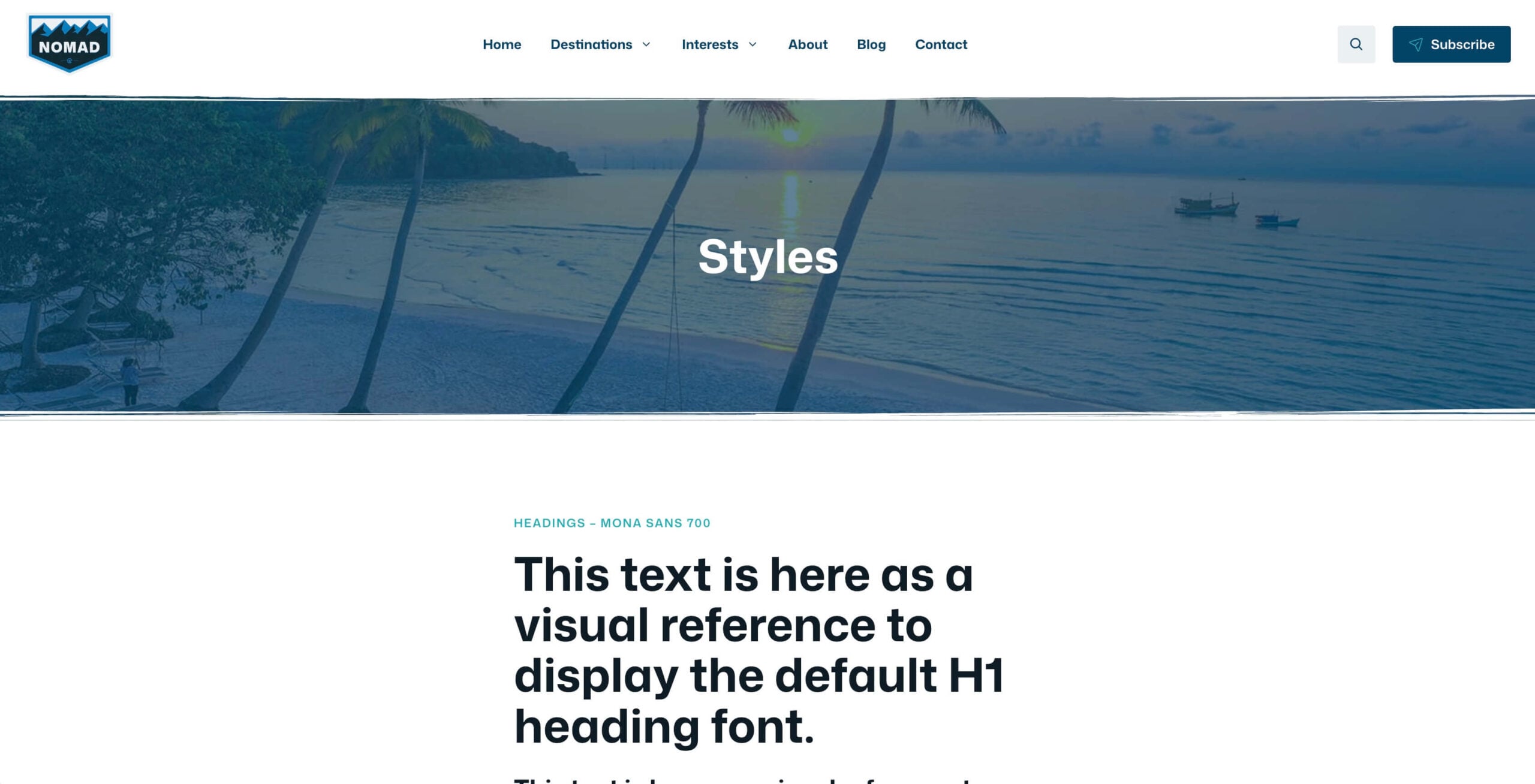
Once defined, we recommend creating a simple Styles page on your site for quick reference and for building out brand styles in the future. You can see some examples of this style-defining page on numerous Starter Sites, including SuperNova, Nomad, or Keynote.
Typography
The Pro Patterns text content follows the correct HTML text hierarchy.
- H1 for heroes
- H2 for sections
- H3 for cards within a section
- Body text for content
In the theme, you will define each text element’s font family and sizes as a minimum requirement. You can tweak letter spacing and margins, too.
Once completed, typography changes will cascade through your site, which will also be reflected in the Pro Patterns.
Colors
In 98% of cases, Pro Patterns don’t have any colors applied except for buttons and some dark background sections. This ensures that the selected patterns will pick up basic body colors for backgrounds and text from your site’s Global Styles.
Themes like GeneratePress allow you to set colors of Body text, Links and Headings in the WordPress Customizer. In doing so, you will again see the Patterns adopt those color styles.
Buttons
Buttons in Pro Patterns are designed using Global Styles. There are two types of buttons, both of which have their own gbp- class:
- Primary Button: .gbp-button–primary
- Secondary Button: .gbp-button–secondary
Once you import a pattern with the buttons, you can modify the Global Styles to match your brand.
Why do this first? Pro patterns work with loosely applied styles so they can inherit the styles of your specific site.
Step 2: Customize & Save a Pattern
Let’s start with a Hero section. We’ll create a new page, building on patterns in the Pattern Library and create our own local pattern that can be reused and repurposed.
- Create a new page (e.g., “Home”).
- Click the GenerateBlocks icon in the upper right. Then click the “Open Pattern Library” button.
- Click the Settings icon in the upper right. Ensure that “Local” is enabled. This will allow you to see the Local patterns that you will be creating.
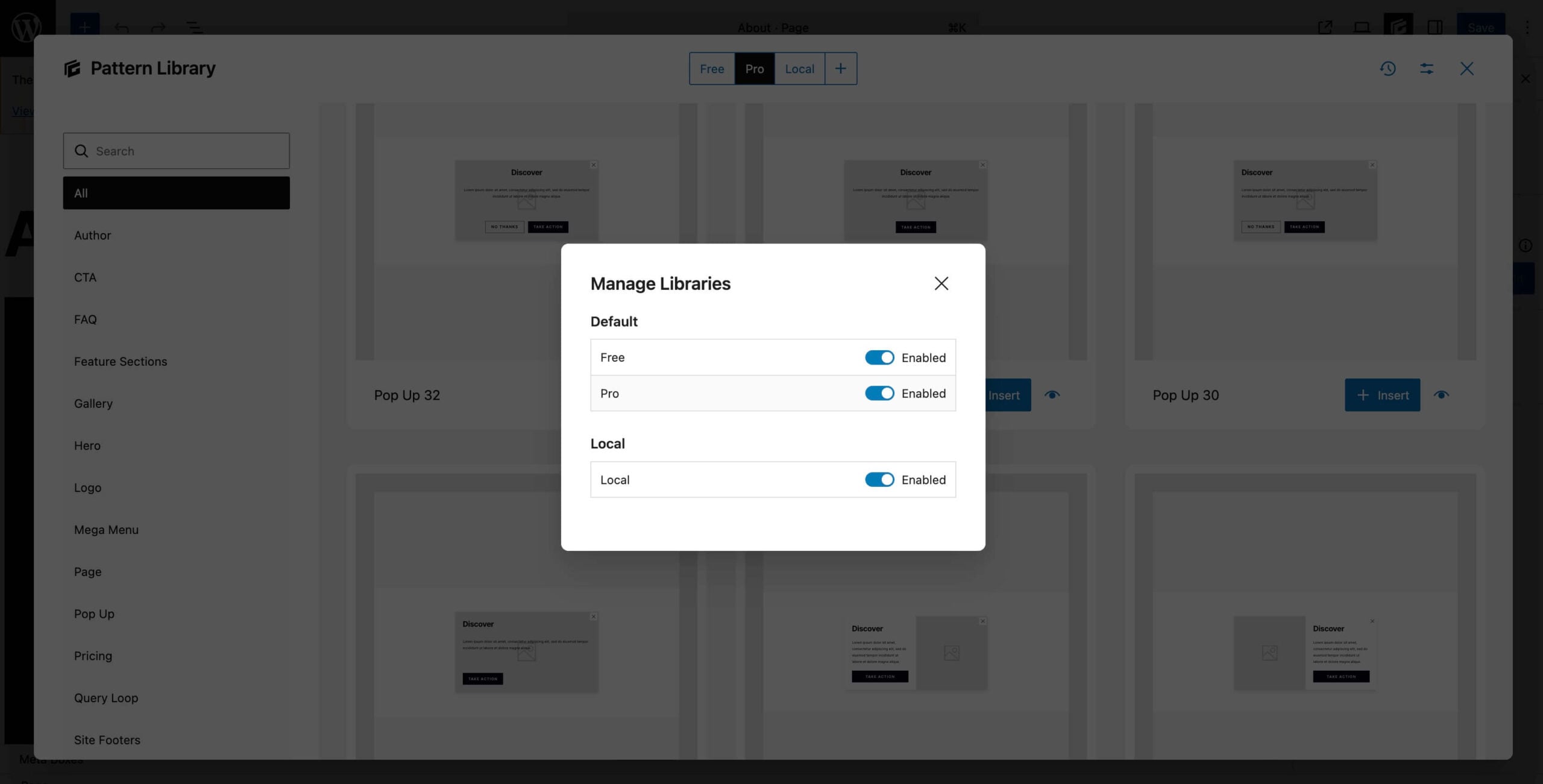
- Browse Pro tab, and search “Hero.” Pick one that closely resembles what you’d like to display.
- Customize content within the pattern to match the brand message.
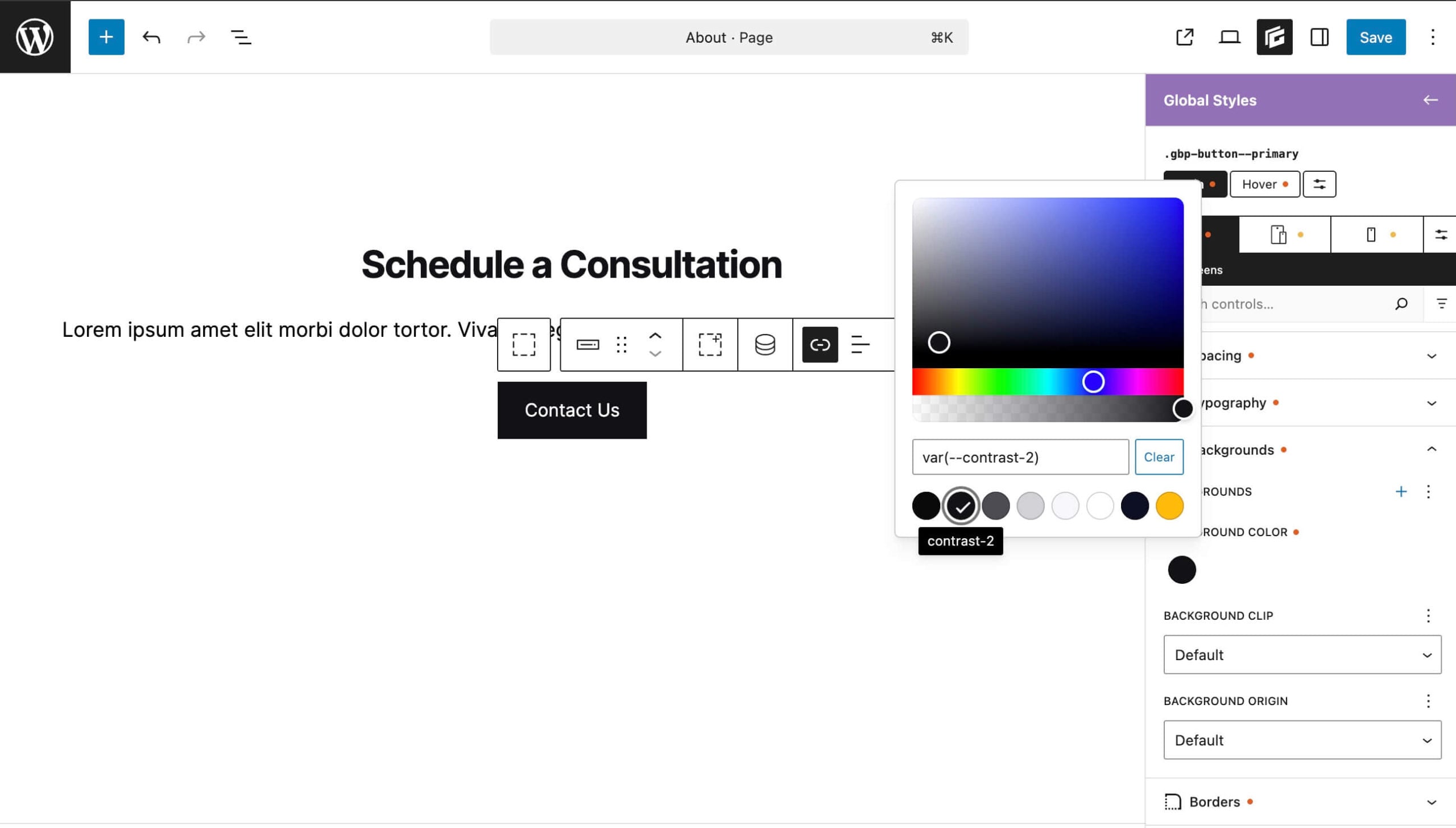
- If there are any minor tweaks to the overall Global Styles, apply them here. In the right sidebar, the applied Global Style shows at the top. Click the Global Style name and the top of the sidebar will change colors to denote you’re editing the Global Style. Make your edits, and upon saving the page, that Global Style will update throughout the site. In the example below, you’ll see changing the Global Style on the primary button’s background color.
- Once the new hero area has been customized to your liking, select the parent Container block of the hero area. Click the three dots on the right of the Block settings bar, and choose “Create Pattern.”
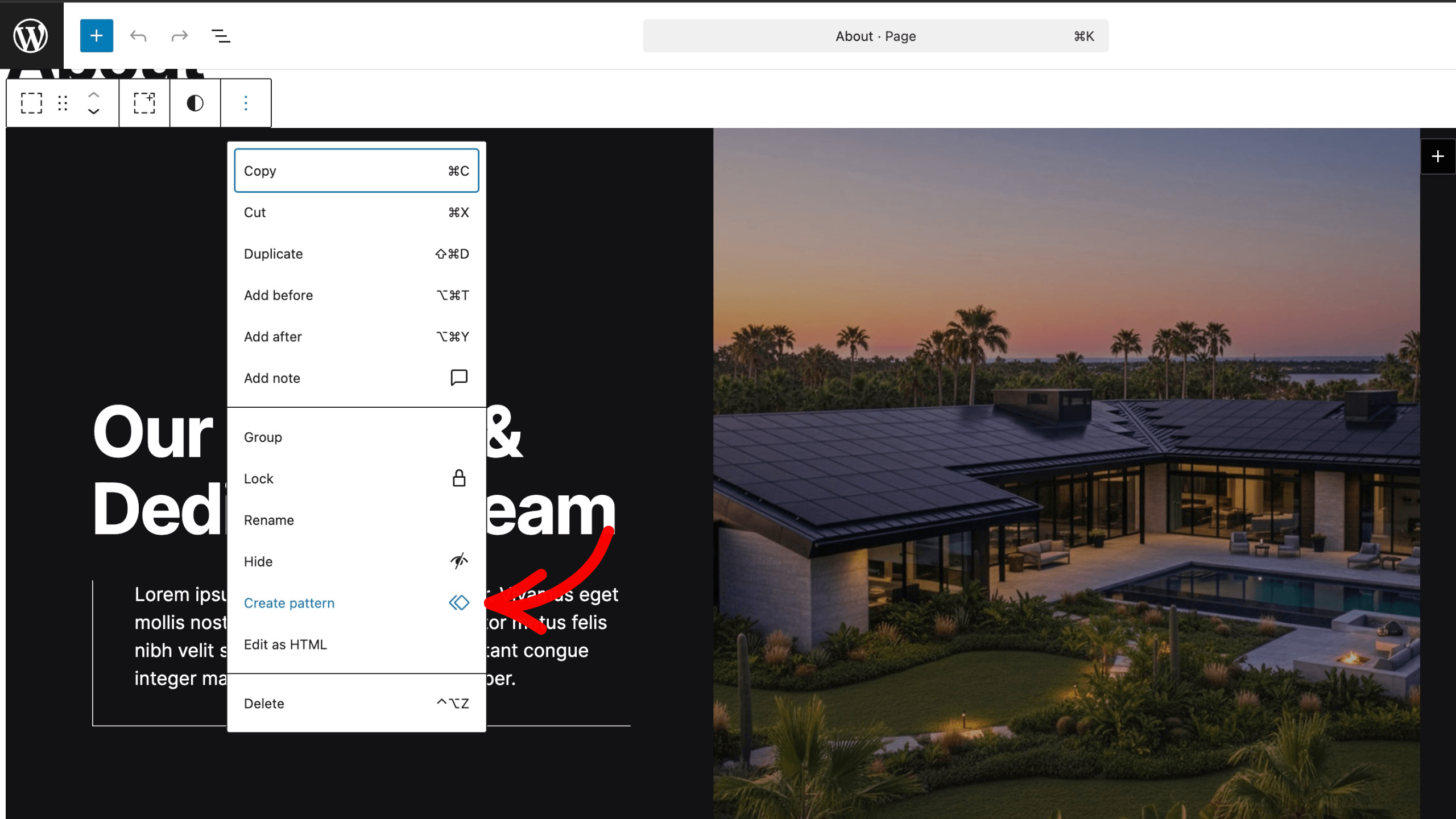
- Name the pattern something intuitive. Don’t sync unless you want global edits across the site; regular local unsynced patterns allow editable copies when it is placed elsewhere.
That’s it. You now have a custom, branded hero pattern using Global Styles that can be used throughout the site and customized on each individual page.
Step 3: Build Your Full Library
Repeat for key brand sections. Here are some examples that can be built using Pro Patterns that you can customize for your new site.
About/Bio
Start with “About – Image Left” from the Pattern Library. Override `.gbp-section__headline` for name/title, `.gbp-section__text` for bio paragraphs. Save as “About – Bio Card”.
Services/Offers
Choose “Features Grid” or “Cards” from the Pattern Library to get started. Target `.gbp-card`, `.gbp-card__title`, `.gbp-card__text` and customize icons and adjust grid columns. Save variations like “Services – 3 Cards.”
Testimonials
Start with “Testimonials – Cards” in the Pattern Library to get started, or design your own testimonial carousel with the new Carousel Block. Style cards/quotes, avatars. Override `.gbp-card–border` for subtle edges. Save the design as a local pattern called “Testimonials – Carousel”.
Call-to-Action
“CTA Banner” from the Pattern Library using `.gbp-button–primary` for the standout button. Save “CTA – Book Session” as a Local Pattern.
Contact/Footer Snippet
Add a simple form with a call to action. Target `.gbp-footer` classes if using footer patterns.
After 5–6 patterns, your Local Patterns tab shows a branded collection. The Pro library is always available for fresh ideas. One change to your Global Styles, for example an update `.gbp-button–primary` hover to scale 1.05, propagates everywhere.
Advanced Tips & Best Practices
- Organize your patterns. Add patterns to Collections in Local Patterns for categories like “Heroes”, “Sections” to make finding the perfect pattern easier.
- Always target `.gbp-` classes over local styling to ensure less CSS bloat.
- In Global Styles, use advanced selectors or custom CSS, to customize the look and feel of the site. Whatever you add gets saved to the Local Pattern for easy reuse.
- Styles not applying? Check selector priority, clear cache, ensure GenerateBlocks Pro is active.
- Export/import patterns for client sites or backups.
Benefits of Global Styles and GenerateBlocks Patterns
There are some key benefits of this methodology, including:
Faster Websites
The approach builds high-performance sites by starting with lightweight, mid-fidelity Pro Patterns and relying on optimized Global Styles instead of heavy local styling. Targeting `.gbp-` classes keeps CSS bloat minimal, resulting in faster loading times and better overall site speed.
Easier Rebranding
One single edit to a Global Style instantly updates every pattern and instance across the entire site, no manual re-editing required. Imported Pro Patterns automatically inherit your custom Global Styles and never overwrite them.
Significant time savings
The workflow saves hours of repetitive work because you define brand colors, fonts, and layouts once in Global Styles and Theme Styles. Reusable local patterns then pull from those central definitions, eliminating the need to restyle elements manually on every page.
Consistent, cohesive branded designs
You turn generic Pro Patterns into a personalized “brand kit” library right inside the Pattern Library. All patterns automatically follow your exact typography, colors, and spacing, delivering a professional, on-brand look everywhere with just a few clicks.
Easy scalability and maintenance
Your site becomes simple to expand as services or offerings grow, simply add new sections by reusing or tweaking saved local patterns. Patterns can be organized into collections, exported/imported for client sites or backups, and the Pro Library remains available for fresh ideas, all while keeping everything consistent and editable.
GenerateBlocks Global Styles and Patterns Make Development Easier
You’ve now transformed generic Pro patterns into a cohesive personal brand library. Start small; build 3 patterns, insert them on a test page, tweak one Global Style, and watch the magic.
Your site will feel professional, on-brand, and easy to expand as your business grows.
Topic: How to Build Your Own Consistent Pattern Library with GenerateBlocks Pro & GeneratePress