- This topic has 18 replies, 3 voices, and was last updated 6 years, 5 months ago by
Leo.
-
AuthorPosts
-
March 23, 2018 at 7:29 am #527914
Amit Nair
I have many images in my posts. I see that there is absolutely no space between the image and text and the post looks very jam-packed.
When I tried to insert blank space when editing the post, it doesn’t work.
What is the way to increase the spacing?
I have provided you temporary admin access. Please check the website URL text box.
Once you are in, please check the post ‘8 aspects…..’.
I have tried many ways but not able to get the results.
March 23, 2018 at 1:21 pm #528449Leo
StaffCustomer SupportHi there,
Can you disable the coming soon page so I can see the problem?
Let me know 🙂
March 25, 2018 at 6:46 am #529970I have provided you temporary admin access. Please check the website URL text box.
Once you are in, please check the post ‘8 aspects…..’.
I have tried many ways but not able to get the results.
March 25, 2018 at 9:22 am #530154StaffCustomer SupportI only see 3 posts on that page but no “8 aspects”?
March 25, 2018 at 10:00 am #530188Hello Leo,
This post is saved as a draft and not published yet.
Please go into all Posts in the dashboard and check the preview mode.
Thanks
March 25, 2018 at 6:36 pm #530522StaffCustomer SupportTry wrapping the content you want space below in
<p>tag like you are already going for this:
http://www.screencast.com/t/HjpAhH5XviThen it should give you the space you want. You can do the same with the images as well if you want space below them.
Let me know if this helps.
March 26, 2018 at 12:05 am #530668Thanks Leo. Not sure if I understand your suggestions. Please elaborate.
Maybe you could make a small change and send me the screenshots to follow.
March 26, 2018 at 8:49 am #531232StaffCustomer SupportLooks like you’ve tried a different way?
That should work as well. However I’d try this CSS instead of the one you are using:
.single .site-main img {
    padding: 20px 0px;
}
March 27, 2018 at 12:19 am #532039Hi Leo,
Thanks for your response. It did seem to make a difference but not that much.
I used the code that you gave and even changed it to 100px to see the difference. But it is not working. 100px should give a considerable difference right?
.site-content img {
padding: 100px 0px;
}I am using the plugin called Simple Custom CSS to change it. Is there a different place where I should put this instead?
March 27, 2018 at 12:30 am #532051I tried putting the code in the ‘Additional CSS’ area in the GP theme.
It works but there are issues.
It changes this padding globally. E.g. it changes this for the images in the recent posts container as well and the results are not pretty.
I want a way in which only the images in a blog post can be adjusted for this padding.
Kindly help.
March 27, 2018 at 8:51 am #532639StaffCustomer SupportApril 15, 2018 at 1:03 am #550683Hi Leo,
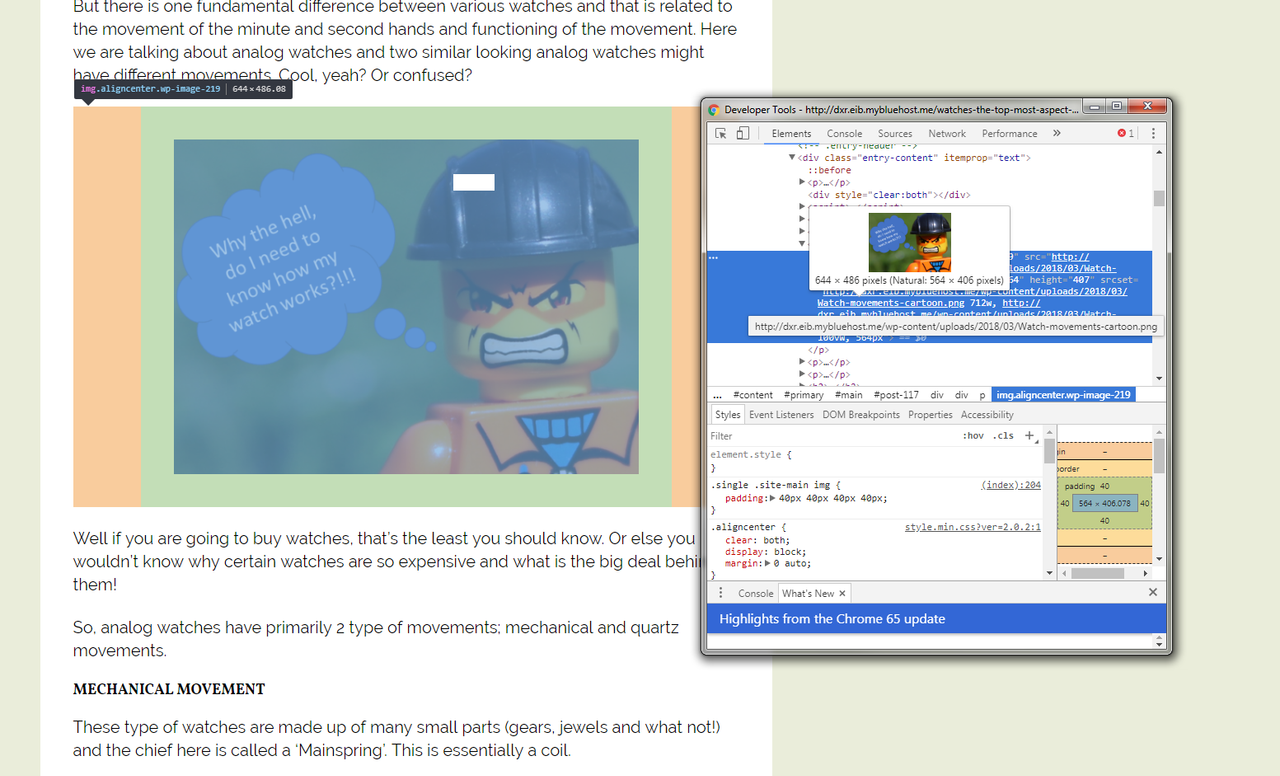
I have been trying to add top padding and bottom padding but it doesn’t work. I believe the below would add padding on all 4 sides. Please help.
.single .site-main img {
padding: 40px 40px 40px 40px;
}April 15, 2018 at 9:04 am #550923StaffCustomer SupportHey I’m unable to see the site again.
Did the temp access ended?
April 15, 2018 at 11:33 am #551037Hi leo,
I have updated the link.
Also, I had another question: How will the new version of GeneratePress impact my site? I mean what is the migration process.
April 15, 2018 at 4:33 pm #551205StaffCustomer SupportHmm I’m seeing you code being applied no problem: https://s7.postimg.cc/9xq2s3byj/40padding.png
No migration process should be needed to update 🙂
-
AuthorPosts
- You must be logged in to reply to this topic.