

Forms have been one of the most requested additions to GenerateBlocks, and with GenerateBlocks Pro 2.6, they’re ready for your production site as of June 23, 2026.
The goal was a forms system that fits the rest of the plugin: lean, block-based, fully styleable, and built for the two jobs most sites actually need a form for: getting in touch and growing a mailing list.
Forms are Opt-In
Forms are not enabled in GenerateBlocks Pro by default. If your site doesn’t need them, leaving this functionality disabled simplifies administrative navigation.
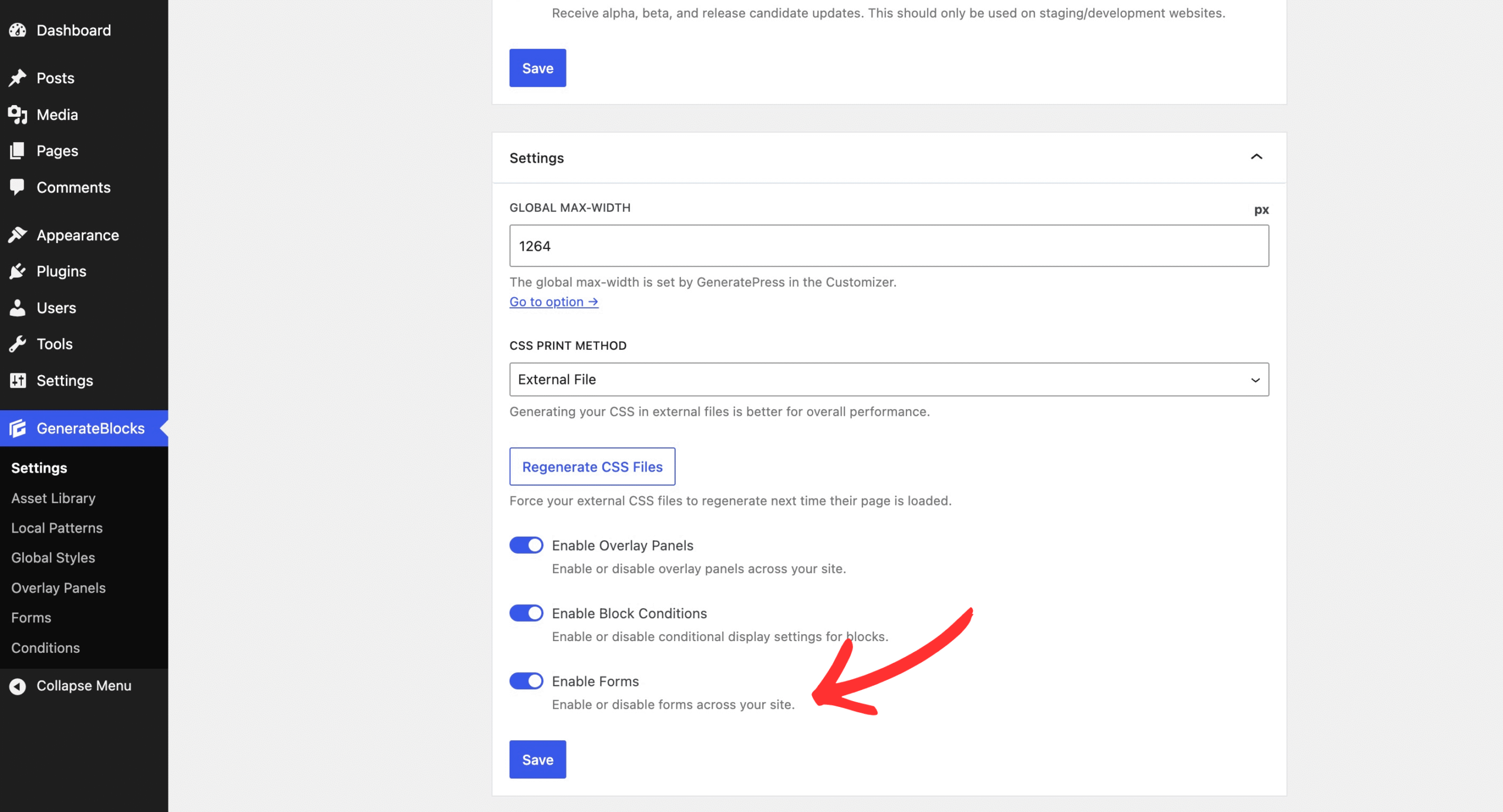
To turn them on, head to GenerateBlocks > Settings and enable the forms module. Once that’s done, a new Forms option appears under GenerateBlocks where you can create and manage your forms.
Two Starting Points
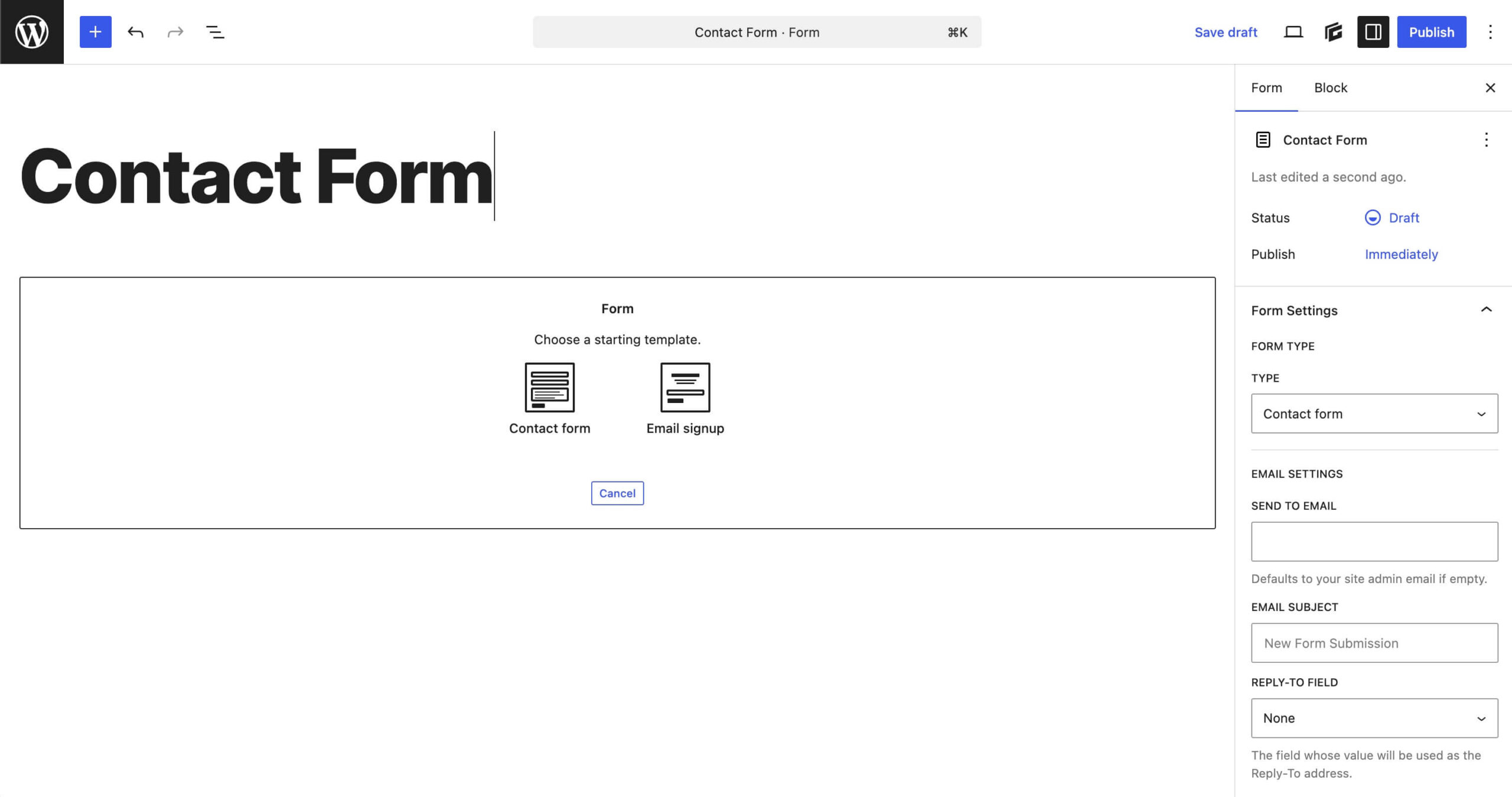
When you create a new form, you’ll be presented with two options: a contact form or an email subscribe form. If you choose email subscribe or change your contact form to also enable email subscription, you’ll see a prompt to “Connect an email marketing service below before publishing.” Contact forms alone do not provide a connection to an email service provider, but you can switch to the Contact form + email signup to enable it.
All the Standard Field Types
The Form Block supports the standard HTML form field types you’d expect: text inputs, checkboxes, radio buttons, hidden fields, and more. Each field can be set as required or optional, and fields can be made conditional. A follow-up question can appear or stay hidden based on how someone answered an earlier question. For example, ask whether your client is a business owner or an individual, and then ask for the business name if relevant.
Dynamic Tags for Pre-Filled and Contextual Data
Fields can be populated with dynamic data using GenerateBlocks dynamic tags. For example, {{post_title}} can pre-fill a hidden field with the current post’s title so you know which page a submission came from, or {{user_meta key:display_name}} can greet a logged-in user by name.
Dynamic tags also work in confirmation emails, so you can personalize the response a visitor receives after submitting.
Styling that Works Like the Rest of GenerateBlocks
The Form Block nests fields inside it, the wrapper, the fields themselves, the labels, the submit button, styles the same way any other GenerateBlocks block does. On top of that, the Form block exposes quick color style settings for the Input, Label, Success message, and Error message, so the parts that only appear in specific states are easy to get right without hunting through selectors.
Because forms are just blocks, you can drop them anywhere, including inside Elements. A subscribe form in the site footer, a contact form inside a sidebar template part, a signup form in a hero section: all of it works the way you’d expect.
One form can be designed to be used in multiple places. Click the three dots next to the form name on the form administrative page to check usage and see where the form is being used. And if you delete a form that is populated on the front end of the site, you’ll get a warning before you confirm that action.
After Submission
You can set a custom success message to display in place of the form, a redirect URL to send the visitor to a thank-you page, or both. Combined with dynamic tags in the success message, you can give submitters a confirmation that actually feels personal.
Email Marketing Integrations
The following services are supported out of the box: Mailchimp, Kit (formerly ConvertKit), MailerLite, ActiveCampaign, and Brevo. Each one connects via an API key you generate inside the service. Once connected, GenerateBlocks allows you to map your form fields to the fields available within the selected mailing list. If you’ve added custom fields to your list on the email service side, those show up in the mapping interface too. No code, no extra setup.
Using a service we don’t integrate with directly? That’s what webhooks are for.
Webhooks for Everything Else
Every form can POST its submission data as JSON to an external URL. That opens the door to Zapier, Make, n8n, or any custom endpoint you control. Trigger a Slack message, append a row to a Google Sheet, kick off a CRM workflow, route to a service we don’t natively support form submission data is yours to do whatever you want with.
Email Delivery and Storage
When a form is submitted, GenerateBlocks sends a notification email and (optionally) a confirmation email to the submitter.
Enable Store Submissions in the form settings, and recent valid submissions are kept right alongside your form, ready to review. This is designed as a safety net, not a replacement for your email or webhook delivery. If a notification gets caught in a spam filter, your SMTP service has a hiccup, or a webhook endpoint goes down, you’ve got a record to fall back on. Submissions are visible from the dashboard, so nothing important slips through the cracks.
Troubleshooting forms is easy. If there are issues with your forms, the form administrative panel will indicate problems with a red dot. Click that for full details to pinpoint issues and fix them quickly.
Spam Protection
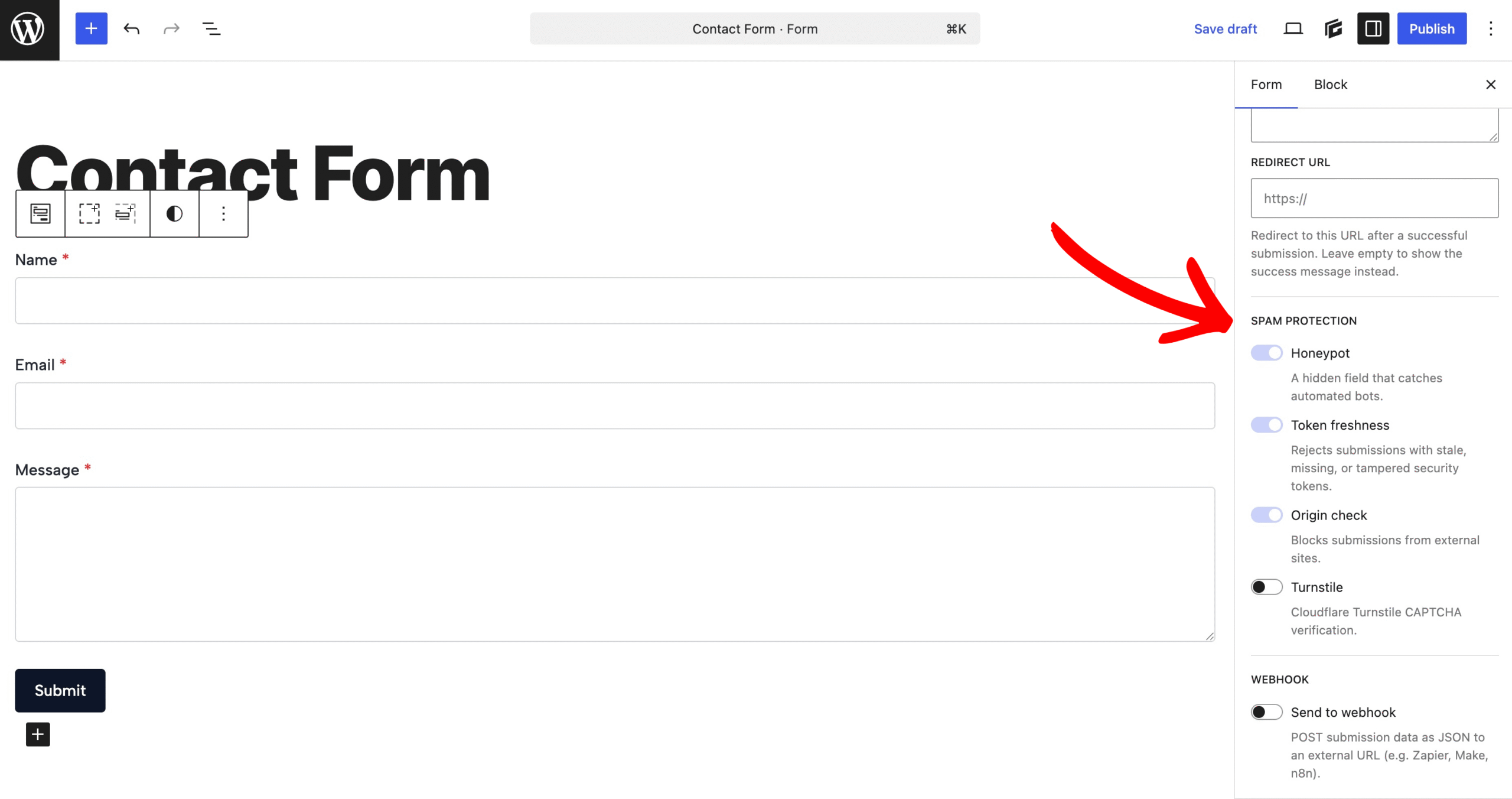
Four layers of spam protection are available, and you can mix them depending on how aggressive you need to be:
- Honeypot. A hidden field that catches automated bots that fill in every input they see.
- Token freshness. Rejects submissions with stale, missing, or tampered security tokens.
- Origin check. Blocks submissions that didn’t come from your own site.
- Turnstile. Cloudflare’s privacy-friendly CAPTCHA, for when bots get clever enough to defeat the rest.
For most sites, the first three are enough. Turnstile is there when you need it.
Share Forms as Patterns
Forms work with the Pattern Library, which makes reusing them across sites genuinely easy. Create a new form, create a new pattern, drop your form into it, and save. Share that pattern to your cloud and GenerateBlocks handles the rest on the receiving end: it installs the Form custom post type for you and adds the pattern in one step.
Build a contact form once, share it across every client site you manage, or publish a polished signup form to your team’s shared library. Your form travels with the pattern, no manual export or rebuild required.
Getting Started with Forms
To start working with forms, follow these steps.
- Go to GenerateBlocks > Settings and enable the forms module.
- Refresh the page to see the forms administration area in the left sidebar and click into it.
- Click add new.
- Add a title for your form.
- Choose either a contact form or email subscription form.
- Set your default style colors for Input, Label, Success Message, and Error Message.
- Click the Form Settings button to set your form up.
- Check our forms documentation for further details on setting up your forms, setting the API for your mailing service provider, webhooks, and more.
That’s Forms in GenerateBlocks Pro 2.6. Our implementation is intentionally focused with contact and email subscriptions, done well, styled to match the rest of your site, with the integrations and protections most sites actually need.
GenerateBlocks Pro 2.6 was released June 23, 2026. Download the release in your account area. You will also want to install GenerateBlocks 2.3.0, which contains code to support functionality in GenerateBlocks Pro 2.6.0. We’re looking forward to your feedback on this new feature.
Everything is great… until we realized you didn’t include the “Upload File” field…
“Upload File” is a very common feature in most forms (add your profile photo, attach your resume or CV, attach a screenshot of the problem…)
Is there any chance—even a slim one—that you’ll add it soon?
I’ll bring it to the team. At the moment, the intention isn’t to replace full-featured forms plugins. Instead, its intent is to handle contact forms and newsletter subscriptions without an additional plugin.
Very impressive!
Love this! Looking forward to the full rollout and putting GP Forms to use on my sites.
Are multi-step forms on the roadmap? Sometimes, forms that require a lot of information are easier to digest when presented with a few fields at a time.
Not at this time. You can add a request to the feature requests if it is important to you. https://feedback.generatepress.com/ Thank you for using GeneratePress!
I’m not sure how I feel about this. I really don’t think GB should be entering form territory. Please keep it basic 🙏
Looks really GREAT!! How do you handle errors when contacting external APIs via webhook? Will there be retries and / or logging?