

If you’ve spent any time building pages in GenerateBlocks, you’ve probably encountered the choice between Flex and Grid layouts and wondered which one you should reach for. The good news is that both are powerful tools built directly into your Container block. The better news is that once you understand what each one does best, the choice becomes almost automatic.
This guide walks through the practical difference between Flex and Grid, when to use each, and the GenerateBlocks settings that will help you start building cleaner, more responsive layouts with confidence. To make things concrete, we’ll use a real example from the GeneratePress Trainer Starter Site to show how Grid powers a polished, magazine-style layout you can replicate yourself.
The Core Difference Between Flex and Grid
Both Flex (Flexbox) and Grid are CSS layout systems, and both are available as display options inside the GenerateBlocks Container block. The difference comes down to one question: are you arranging items in a single direction, or in two?
Flexbox is one-dimensional
It arranges items along a single axis, either as a row (horizontally) or as a column (vertically). Think of it as lining things up. Flex is fantastic when you have a group of items that need to sit next to each other, but you don’t necessarily care about how they line up with items above or below them.
Grid is two-dimensional
Grid arranges items into rows and columns simultaneously, with precise control over how items align across both axes. Think of it as a structured framework. Grid shines when you need rows and columns to relate to each other, like a card layout where every card lines up perfectly across the page.
A simple way to remember it: if you’re arranging things in a line, use Flex. If you’re arranging things in rows and columns, use Grid.
When to Use Flex
Flex is the workhorse of modern web layout. It’s what you’ll reach for most often when building common page elements. Here are the situations where Flex really earns its keep:
Button groups
Anytime you have a horizontal row of items that need to be evenly spaced, aligned, or pushed to opposite ends of a container, Flex handles it beautifully. A logo on the left and menu items on the right; that’s a classic Flex layout.
Hero sections with text and an image side by side
When you have two elements that need to share a row, with one taking up more space than the other, Flex gives you fine control through properties like flex-grow and flex-basis.
Centering content vertically and horizontally
Flex makes vertical centering trivial. Set the display to flex, set both alignment options to center, and you’re done.
Card content alignment
Inside a single card, you might use Flex to push a button to the bottom of the card no matter how much text sits above it. This is one of the most common uses of Flex inside individual containers.
Wrapping rows of items where each row’s items relate to each other.
When you turn on flex-wrap, items will flow to the next line as needed, but they don’t need to align with items in other rows.
When to Use Grid
Grid is your tool for structure. Use it when the relationship between rows and columns matters. Common use cases include:
- Blog post or product card layouts. When you have a series of cards that need to form a tidy three-column or four-column grid, where every card aligns with the cards above and below it, Grid is the right choice.
- Image galleries. Grid handles galleries elegantly, especially when you want some images to span multiple columns or rows for a magazine-style layout.
- Pricing tables. A row of pricing tiers where every feature row needs to line up across all the columns is a textbook Grid scenario.
- Editorial or dashboard layouts. Anytime you’re building something that resembles a print layout with content blocks of varying sizes that fit together like puzzle pieces, Grid gives you the precision you need.
A great real-world example is the features section on our Trainer Starter Site home page. It pairs five text blocks with content images in an interlocking, asymmetrical layout where every block lines up cleanly along shared row and column lines. That’s the kind of layout that would be a nightmare to build with Flex, but Grid makes it almost effortless. We’ll walk through exactly how it’s set up later in this post.
Getting Started in GenerateBlocks
In GenerateBlocks 2.0 and later, both Flex and Grid are available as Display options inside the Container block’s Layout panel. You no longer need a separate Grid block for grid layouts; it’s all handled through the Container block, which keeps your structure cleaner and your markup leaner.
Here’s how to access these settings:
- Add a Container block to your page.
- Select the Container, and in the right sidebar, find the Layout panel.
- Under Display, choose either Flex or Grid.
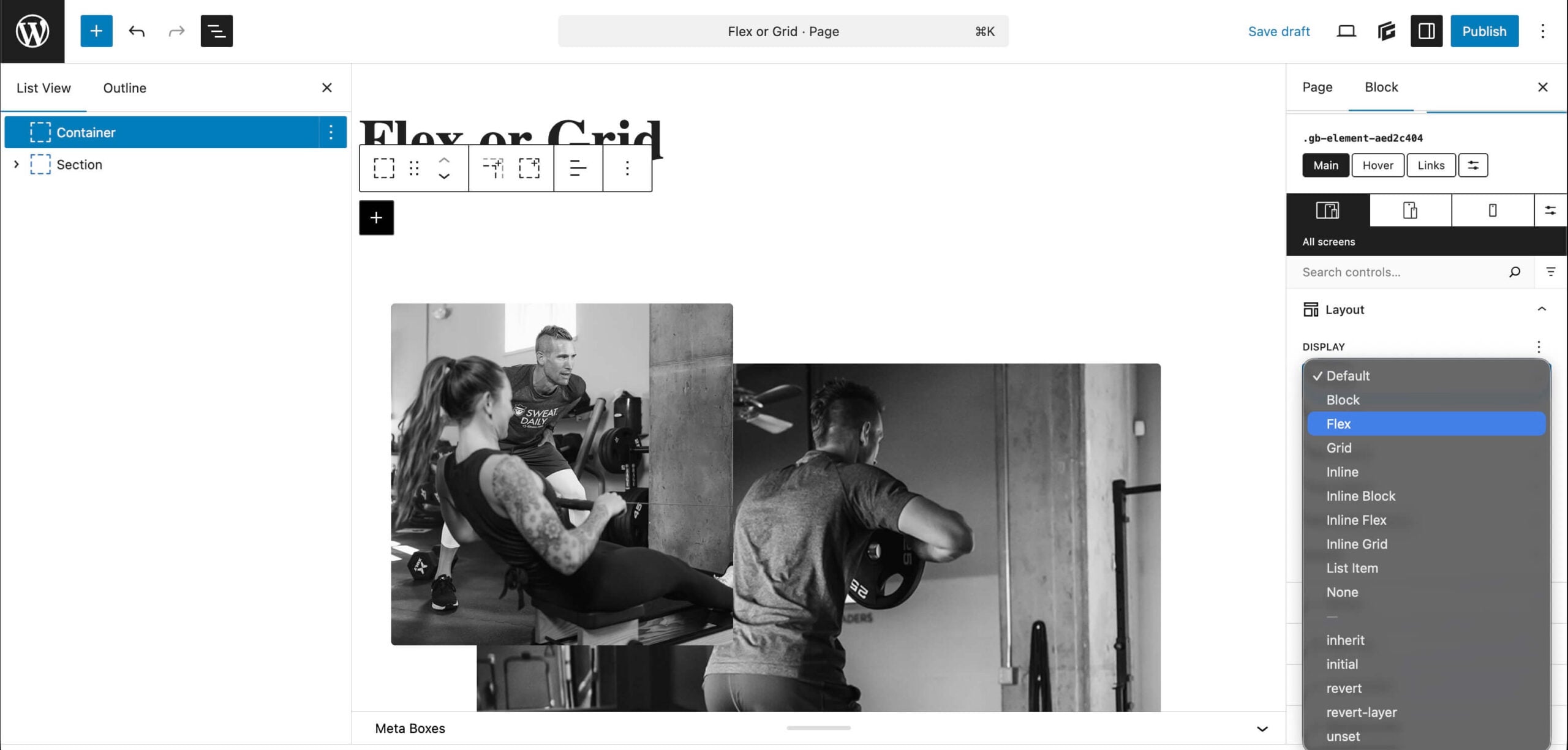
Once you select one display option, a new set of options appears. Let’s walk through the most useful ones for new users.
Essential Flex Settings to Know
When you set a Container’s display to Flex, the items inside that container become flex items. Here are the settings that matter most:
- Flex Direction. This determines whether your items flow horizontally (row) or vertically (column). Row is the default and is what you’ll use for most navigation, hero sections, and side-by-side layouts. Switch to column when you want items to stack vertically while still benefiting from flex’s alignment controls.
- Justify Content. This controls how items are spaced along the main axis (horizontal in a row, vertical in a column). The most useful options are:
- Start, Center, End: pin items to the beginning, middle, or end of the container.
- Space Between. Pushes the first and last items to the edges, with equal space between the rest. Perfect for headers with a logo on one side and navigation on the other.
- Space Around and Space Evenly. Distribute items with equal spacing, with subtle differences in how the outer edges are handled.
- Align Items. This controls alignment along the cross axis (vertical in a row layout). Use Center to vertically center items in a row — one of the most common needs in web design.
- Flex Wrap. By default, flex items will try to squeeze onto a single line. Turning on wrap allows them to flow to the next row when there isn’t enough space. This is essential for responsive layouts.
- Column Gap and Row Gap. These add space between your flex items without needing to add margins. Gap is one of the most welcome additions to flex layouts and dramatically simplifies spacing.
A quick tip on widths: when you’re using Flex with multiple child Containers, avoid setting fixed percentage widths if you also have a column gap. Instead, use the Flex Grow and Flex Shrink options on each child Container. Set both children to grow as fractions (for example, 3 and 2 for a 60/40 split), and the layout will handle gaps gracefully without overflow issues.
Essential Grid Settings to Know: A Walkthrough Using the Trainer Starter Site
Rather than running through Grid settings in the abstract, let’s look at how they actually come together on a real page. The features section on the Trainer starter site is a perfect study. It’s an asymmetrical layout where five content blocks (headline + paragraph) interlock with images of varying sizes, all aligned along a clean underlying structure.
Here’s how it’s built in GenerateBlocks.
Step 1: Set the parent Container to Grid
The outer Container that holds the entire features section has its Display set to Grid. This is the foundation — every setting we configure below applies to this parent container, and every direct child becomes a grid item.
Step 2: Define the column structure
Under the Grid Layout panel, the Grid Template Columns field is set to:
repeat(7, minmax(0, 1fr))This creates seven equal-width columns that flex with the available space. The repeat(7, …) shorthand says “give me seven of these,” and minmax(0, 1fr) says “each one should be one fraction of the available space, with no minimum width that could cause overflow.” Why seven columns? Because the layout needs an odd, non-symmetrical number to place items of different widths cleanly. Three across the top isn’t quite right, and neither is four. Seven gives you enough granularity to create that distinctive interlocking look.
This is one of Grid’s superpowers: you’re not stuck with 2, 3, or 4 columns. Pick whatever divides the row in a way that supports your design.
Step 3: Define the layout with Grid Template Areas
This is where the magic happens. Instead of placing each item by column number, the Trainer site uses Grid Template Areas to map out the entire layout visually.
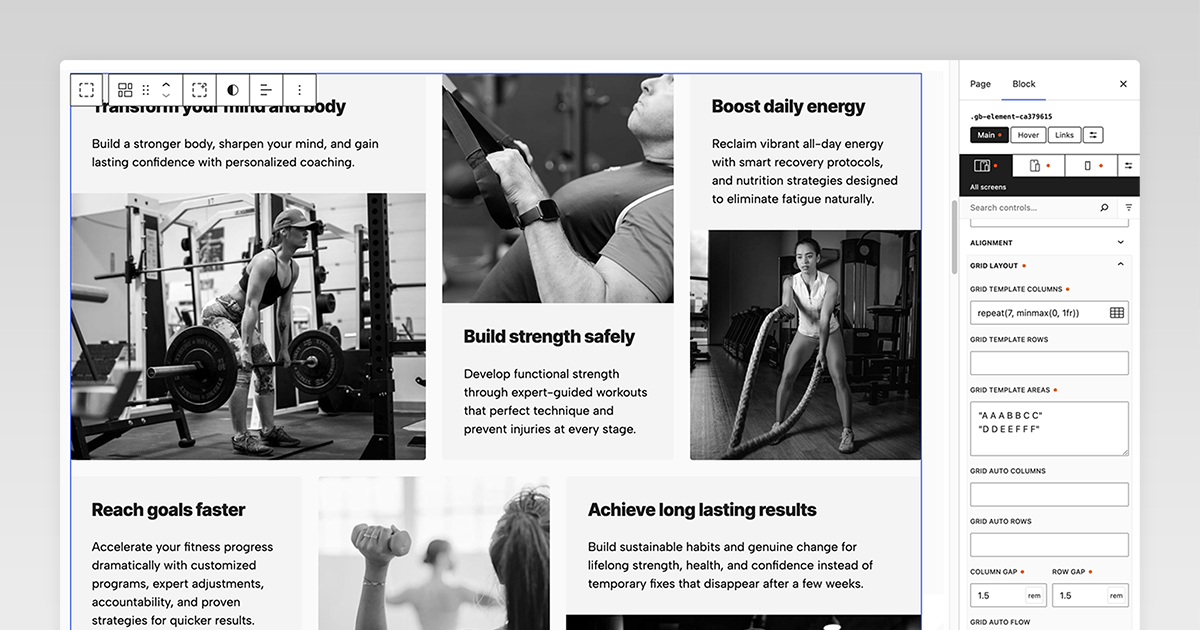
The setting looks like this:
“A A A B B C C”
“D D E E F F F”
Each letter represents a named area, and each row of quotes represents a row in the grid. Reading across the first row: item A spans three columns, item B spans two columns, and item C spans the last two columns. The second row: item D spans two columns, item E spans two columns, and item F spans three columns. Seven columns per row, every time.
The beauty of this approach is that the layout is readable at a glance. You can practically see the design in the syntax. And if you want to rearrange things, you just rewrite the letters.
Step 4: Assign each child Container to an area
Each child Container inside the grid has a Grid Area field in its own settings panel. The Container holding the “Boost daily energy” block, for example, is assigned to area C which, based on the template above, places it in the top-right corner spanning two columns. Every other child Container is similarly assigned a letter (A, B, D, E, or F) that corresponds to its place in the layout.
This is what gives you the asymmetrical, magazine-style result. Some items naturally span more columns than others because their named area covers more grid cells.
Step 5: Set the gaps
The Column Gap and Row Gap are both set to 1.5rem. That’s it. No margin tricks, no padding workarounds. Grid’s gap controls space everything evenly, and because the gap is defined in REM units, it scales with your typography.
What to take away from this example
A few principles from this build are worth applying to your own designs:
- Start with the structure, not the items. Decide on the column count and the named areas first, then drop content into them.
- Use named areas for asymmetrical layouts. They’re far more readable and maintainable than juggling grid-column-start and grid-row-end values on every child.
- Use minmax(0, 1fr) to prevent overflow. It’s a small detail that saves you from layout headaches when content is long or images are large.
- Let the gap do the spacing work. Don’t add margins to grid items. Adjust the Column Gap and Row Gap instead.
Other Useful Grid Settings
Beyond the example above, a few more settings are worth knowing about as you grow more comfortable with Grid:
- Grid Template Rows. Less commonly needed, but useful when you want to define specific row heights instead of letting them size automatically based on content.
- Grid Auto Columns and Grid Auto Rows. These define the size of columns or rows that get created automatically when you have more items than your template explicitly defines.
- Justify Items and Align Items. These align the contents of each grid cell horizontally and vertically. Useful when your grid items don’t fully fill their cells.
- Grid Column and Grid Row (on individual items). As an alternative to named areas, you can place items by line number. Setting an item’s Grid Column to `1 / 3` makes it span from the first column line to the third, occupying two columns.
A Simple Decision Framework
When you’re staring at a blank page wondering which to choose, ask yourself these three questions:
- Am I arranging items in a single row or column? If yes, use Flex.
- Do my rows and columns need to align with each other? If yes, use Grid.
- Do I need items of different sizes that fit together precisely? If yes, use Grid.
It’s also worth noting that Flex and Grid aren’t mutually exclusive. In fact, the most polished layouts often combine both. The Trainer example uses Grid for the overall section, but inside each individual content block, Flex keeps the headline and paragraph stacked and aligned. This combination is a hallmark of clean, professional designs: Grid for the macro structure, Flex for the micro alignment.
A Few Practical Tips for New Users
Start with the desktop view, then refine for tablet and mobile. GenerateBlocks lets you set different display values at each breakpoint. The Trainer starter site, for example, collapses its seven-column grid into a simpler stack on mobile by changing the Grid Template Columns at smaller breakpoints.
Use Gap instead of margins. When working with Flex or Grid, the Gap settings are almost always cleaner than adding margins to individual items. Gaps don’t create the awkward edge-spacing problems that margins sometimes do.
Don’t fight the layout. If you find yourself adding lots of custom CSS and negative margins to make Flex behave like Grid (or vice versa), step back and consider whether you’re using the right tool. Switching display types is usually the simpler fix.
Steal from the starter sites. All of the GeneratePress Starter Sites are built with GenerateBlocks. Importing one and inspecting how the layouts are constructed is one of the fastest ways to learn. Click into any Container, open the Layout panel, and you’ll see exactly which Display, columns, areas, and gaps are in use. You can also copy Container blocks from Starter Sites to use in any layout.
Flex and Grid are Complementary Tools
Learning when to use Flex or Grid is one of the most valuable skills you can develop as a GenerateBlocks user. Flex handles the linear arrangements that make up most everyday layout needs. Grid steps in when you need real two-dimensional structure, like the interlocking features section on the Trainer starter site.
Start by asking whether your layout is one-dimensional or two-dimensional, lean into the Gap and alignment controls to keep your spacing clean, and don’t be afraid to combine the two when the design calls for it. With a little practice, and a Starter Site or two as a guide, these layout systems will become second nature, and you’ll find yourself building faster, more flexible pages than ever before.

Simply explained with a nice example 👍