
- This topic has 17 replies, 4 voices, and was last updated 4 years, 11 months ago by
Leo.
-
AuthorPosts
-
July 2, 2021 at 3:46 am #1841948
Greg
I’m not sure what the best approach to this situation would be.
I’d like to display a standard block to link to certain pages. I have an ACF field added to the Page post type. These are an image and a summary. I’d like to display the image with the page title overlayed centered on the image, the summary displayed below the image and then a “Learn More” button below the summary which is a link to the page.
What would be the best way to approach this? I have both GeneratePress Pro and Blocks Pro.
July 2, 2021 at 4:03 am #1841975David
StaffCustomer SupportHi there,
it would require a Block Element to do that, so it would have to be hooked into the post NOT added to the content of the post editor.
https://docs.generatepress.com/article/block-element-overview/
And using the dynamic data options:
https://docs.generatepress.com/article/dynamic-data/
When setting the dynamic background to a Container Block or your summary using a Headline Block – you would use the Dynamic Type: Post Meta. And in the Meta field name provided you would add your ACF field name.
July 2, 2021 at 6:32 am #1842094Thank you David.
I’m trying to display like this.
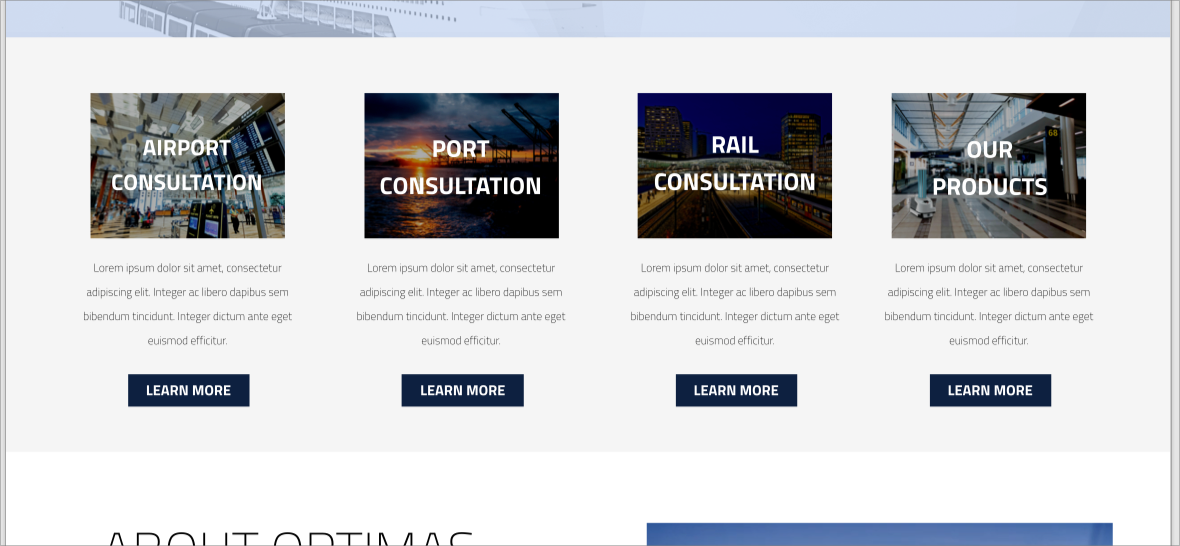
I have these 4 pages created, with ACF fields for the summary blurb and image to use.
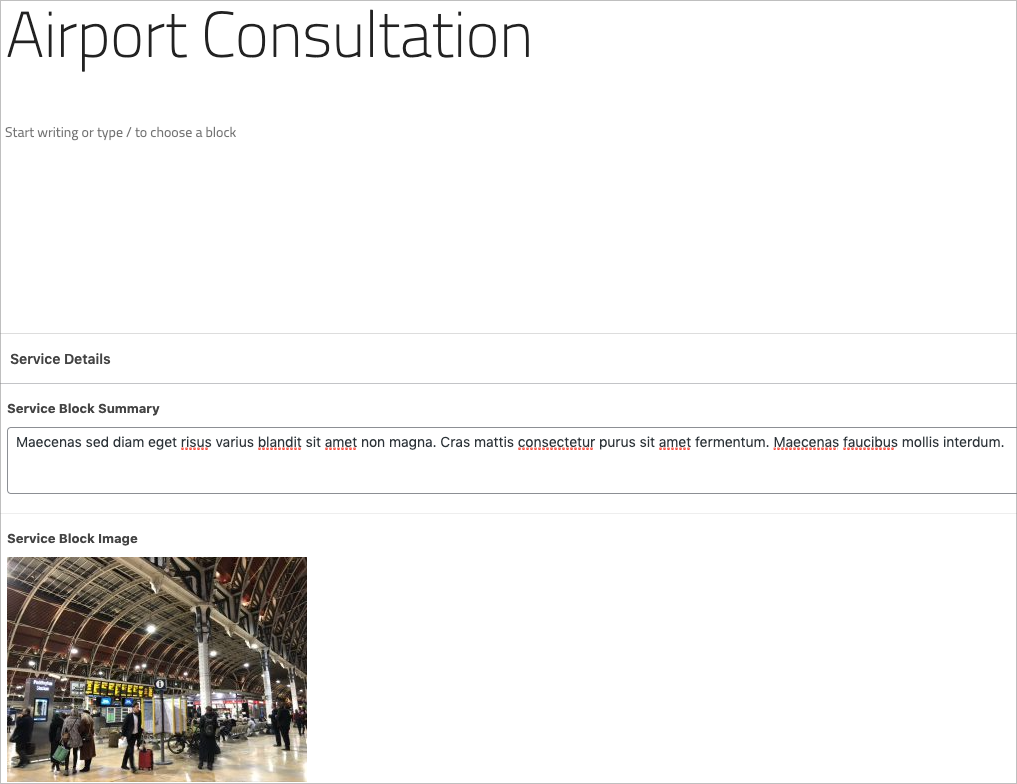
My primary goal is to make editing the image and summary text simple for my client. Is there another method of doing this that would be more straight forward? I’d also considered making a “Services” CPT for this purpose. Working on figuring out the best GeneratePress way to build things.
July 2, 2021 at 7:35 am #1842150StaffCustomer SupportThats not something the Theme or GB can do – we will be adding Dynamic Data options to GB Pro in the future that will be able to do that.
In the meantime have you checked out ACF Blocks:
https://www.advancedcustomfields.com/resources/blocks/
The alternative would be to create a custom post type for each of the blocks and use the WP Show Posts plugin to display them.
July 2, 2021 at 7:42 am #1842156Ok, thank you David. I’ll look into ACF Blocks. I’ve used WP Show Posts before so may go that route.
July 2, 2021 at 8:01 am #1842379StaffCustomer SupportThe WP Show Post root looks to be the simplest option – keeps all things in the one place and you can simply use the Featured Image, Title and Excerpt 🙂
Glad to be of help
July 4, 2021 at 11:04 pm #1844601Hi David,
I’ve started with the WP Show Posts route. I’ve got it using the “Overlay” card style. Is there a way I can edit or make my own style? I’d like to move the excerpt and read more button below the image. I also need to have the read more button link to a different page. I’ve created a “Services” CPT that I’m defining the titles and featured images in, but I need to link to the pages that I have setup for each service, not the URL for the service CPT that the default read more button will link to.
Can I do that?
July 4, 2021 at 11:31 pm #1844621Elvin
StaffCustomer SupportHi Greg,
The default card styles are shown here – https://demos.wpshowposts.com/cards/
Perhaps there’s already a style here of your preference.
If none, you’ll have to write custom CSS for it. If you can provide us a mockup image how how exactly you want it to be laid out, we can help you out with the writeup.
July 5, 2021 at 12:20 am #1844662Hi Elvin,
The “Overlay” card style is the closest to what I’m looking for, so I’ve already set WP Show Posts to use that as the starting point. What I’m looking for is the first image in post 1842094 in this thread. The image with the title centered on it, excerpt below the image and then a button to link to the page.
Right now this “read more” button links to the CPT, but I need it to link to a page. Is there a way to have either the CPT return a different URL or to set the URL the “read more” button uses?
Thank you
July 5, 2021 at 1:22 am #1844709StaffCustomer SupportRight now this “read more” button links to the CPT, but I need it to link to a page. Is there a way to have either the CPT return a different URL or to set the URL the “read more” button uses?
You can do either:
Use a redirect plugin to redirect all the read more button coming from WPSP.
Or,
Filter what WPSP’s read more button does:
You can filter using
wpsp_read_more_output,add_filter( 'wpsp_read_more_output', function($output){ $newLink = 'https://your.link.here'; $output = sprintf('<div class="wpsp-read-more"> <a title="%1$s" class="%4$s" href="%2$s">%3$s</a> </div>', the_title_attribute( 'echo=0' ), $newLink, $settings[ 'read_more_text' ], esc_attr( $settings['read_more_class'] ) ); });I prefer doing the filter as it’s easier to control. With this, you’re using only WPSP lists are affected.
July 5, 2021 at 2:34 am #1844790That looks perfect, but I’m getting an error that $settings is undefined.
1. Is it possible to use this URL (or separately set) as the destination when clicking on the whole tile/image (so the read more button and the full card go to the same place)?
2. The “Overlay” card style is the closest to what I’m looking for, so I’ve already set WP Show Posts to use that as the starting point. What I’m looking for is the first image in post 1842094 in this thread. The image with the title centered on it, excerpt below the image and then a button to link to the page.
Thank you
July 5, 2021 at 6:15 am #1844984StaffCustomer SupportQuick question – why not just use WP Show Posts to list the actual pages ? Whats the need for the CPT between them ?
July 5, 2021 at 7:12 am #1845035That could work David. I had to change some of the page titles around, but working now.
I’ve now got the pages coming directly through WP Show Posts, so the correct links are there.
Can I put the except and Read More button below the image?
July 5, 2021 at 10:06 am #1845492Leo
StaffCustomer SupportThe settings should be under the Content tab:
https://docs.wpshowposts.com/article/content-overview/July 5, 2021 at 10:20 am #1845526I can change the content source (excerpt or full) on that page, but I’d like to move the content and read more link below the featured image, rather than overlayed.
If I used the base card, which has the except and read more below, how can I get the title overlayed on the image?
-
AuthorPosts
- You must be logged in to reply to this topic.
