
- This topic has 9 replies, 5 voices, and was last updated 5 years, 6 months ago by
David.
-
AuthorPosts
-
October 4, 2020 at 12:52 pm #1472061
Laine
The logo is added via the Site Identity in the Customizer, but it only shows up on mobile and not desktop views.
Here’s the site:
https://bridgewaydev.wpengine.com/October 4, 2020 at 1:11 pm #1472071Elvin
StaffCustomer SupportHi Laine,
Your site is showing Mixed content errors.
Do you have mobile header enabled? If so, please try to remove the logo, clear cache and then add the logo back in.
October 4, 2020 at 1:19 pm #1472079The mobile header under the layout is off. Is that what you’re referring to?
I tried deleting the site logo, clearing the cache (both the browser and site cache), and adding it back in, but it’s still not showing up.
October 4, 2020 at 2:14 pm #1472113StaffCustomer SupportThe mobile header under the layout is off. Is that what you’re referring to?
Yeah, thanks.
As previously mentioned. The site is having mixed content errors. That includes the logo.
We must fix that for the logo to display properly on all viewports.
For starters, can you check Settings > General to check if the site url added has
http://? If so, it must be set tohttps://then purge server cache.

You may also have to check for files that are still in
http://.This article can help you w/ this issue. https://wpengine.com/support/mixed-content/
October 4, 2020 at 4:24 pm #1472207Got it, thanks!
October 4, 2020 at 4:28 pm #1472211StaffCustomer SupportNo problem. Let us know how it goes.
October 23, 2020 at 6:09 am #1501147Folino
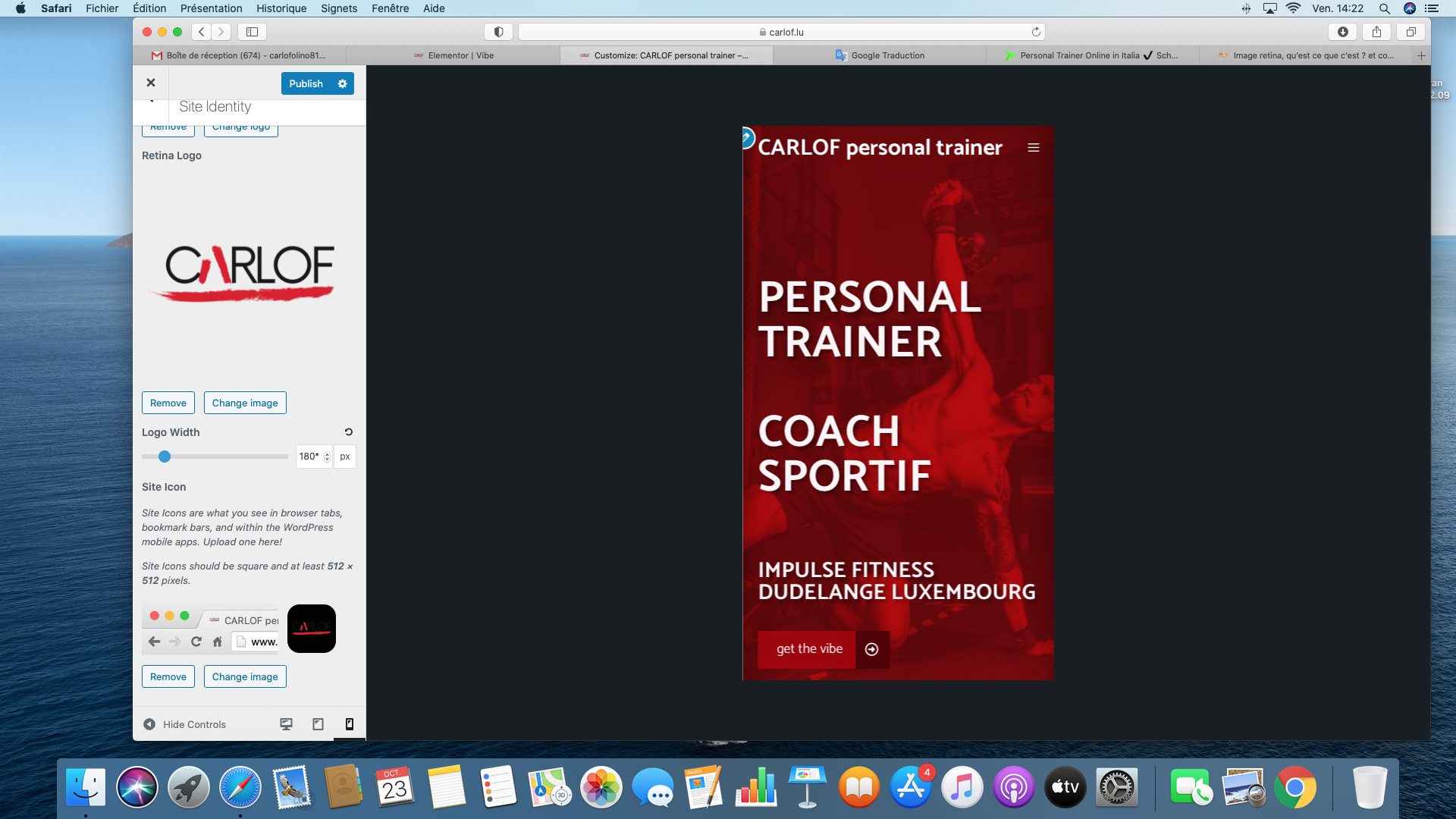
Hello, I need help …. I already cleared the cache but the site logo is displayed on desktop devices but not mobile … phone, thanks for helping me
 October 23, 2020 at 8:57 am #1501501
Leo
StaffCustomer SupportCan you open a new topic for your question and link us to the page in question?
Thanks 🙂
October 24, 2020 at 12:50 am #1502039I tried to open a new post but I can’t understand how to do it …. I’m new and don’t have much experience …. thanks for helping
October 24, 2020 at 5:21 am #1502215David
StaffCustomer SupportHi there,
scroll to top of this page, and click the
Open Support Topicbutton.
You will see the Pre Topic Check. Once you have read that. Click the Pre Topic Check Button.
Then you will see the Topic Guidelines. Click the Open Topic. Where you will now be able to write your topic title and request. -
AuthorPosts
- You must be logged in to reply to this topic.
