
Archived topic
How to place a block half-over the header?
18 replies · Started by Sascha on January 27, 2022
Hi
I need to place an red-image/button as seen here on this site.
So on Appearance > Elements I have created a Block-Element with an Image-Block inside a Container Block.
The Element is set as a Hook-Type. Then, I have tried many of the Hook-Names (positions) to place the image as seen on the screenshot (somewhere between header and content). The container has a negative margin, so that the image/button can be placed there, but not sure if this is the best method.
The problem with all positions I have tested is, that the main-content will always move up or down. But the content should remain at the same position regardless of how I position the image/button.
Can you please help me to accomplish this properly?
Crecentials below.
Thank you in advance and kind regards,
Sascha
Hi Sascha,
One way you can achieve the look you’re going for is to simply add the container block with the image into the Page Hero Block Element itself.
See this for reference to have an idea with what I mean: https://share.getcloudapp.com/JruGOPAd
From the screenshot, you can see in my example that I placed the container that holds the image within the container holding the entire Page hero. I also added a CSS class to the container holding the image (“test-logo-bitcoint”).
Moreover, I also added a CSS class to the container holding everything together: https://share.getcloudapp.com/P8u61ZNj
After doing so, I added some CSS to move the image to my preferred position: https://share.getcloudapp.com/v1uLg5vj
.page-hero-holder {
    position: relative;
}

.test-logo-bitcoin {
    position: absolute;
    right: 5%;
    top: 70%;
}
You may change the percentages to your preferred values to change the image’s position. Make sure to change the class names to the ones you set as well.
Here’s a link you may refer to regarding information on how to add custom CSS: https://docs.generatepress.com/article/adding-css/
If you’ll need to only display this on certain pages, then have two copies of the Page Hero block element, one without the image and the other without, and set the appropriate display properties to each.
Hope this helps! :)
Thanks Fernando!
The Page Hero Block is also a global Block-Element that occurs on all pages. But the image/button should apply on the "Karriere" page only.
How to deal with this situation?
Thank you in advance and kind regards,
Sascha
Hi there,
easiest solution is to:
a) exclude the Karriere page from the Global Block element
b) create a block Element specifically for Karriere page
Thanks David,
but now the image will change the background size, as you can see here compared to the live-page! If I add negative margin, the button will hide behind the container of the content 🙈
The header and content should remain the same.
Only this green button should overlap both, as seen on this mockup and the link on the button or it's container should work too
Please help, I need to finish this today 🙈
So to be clear - you hust want to overlapping button on the Karriere site?
If so add the button to a Block Element, use the same Hook as the hero above it, and set the Priority to 20 this will make sure it comes after the hero.
Once its there share a link so i can see it. Then ill advise on the rest
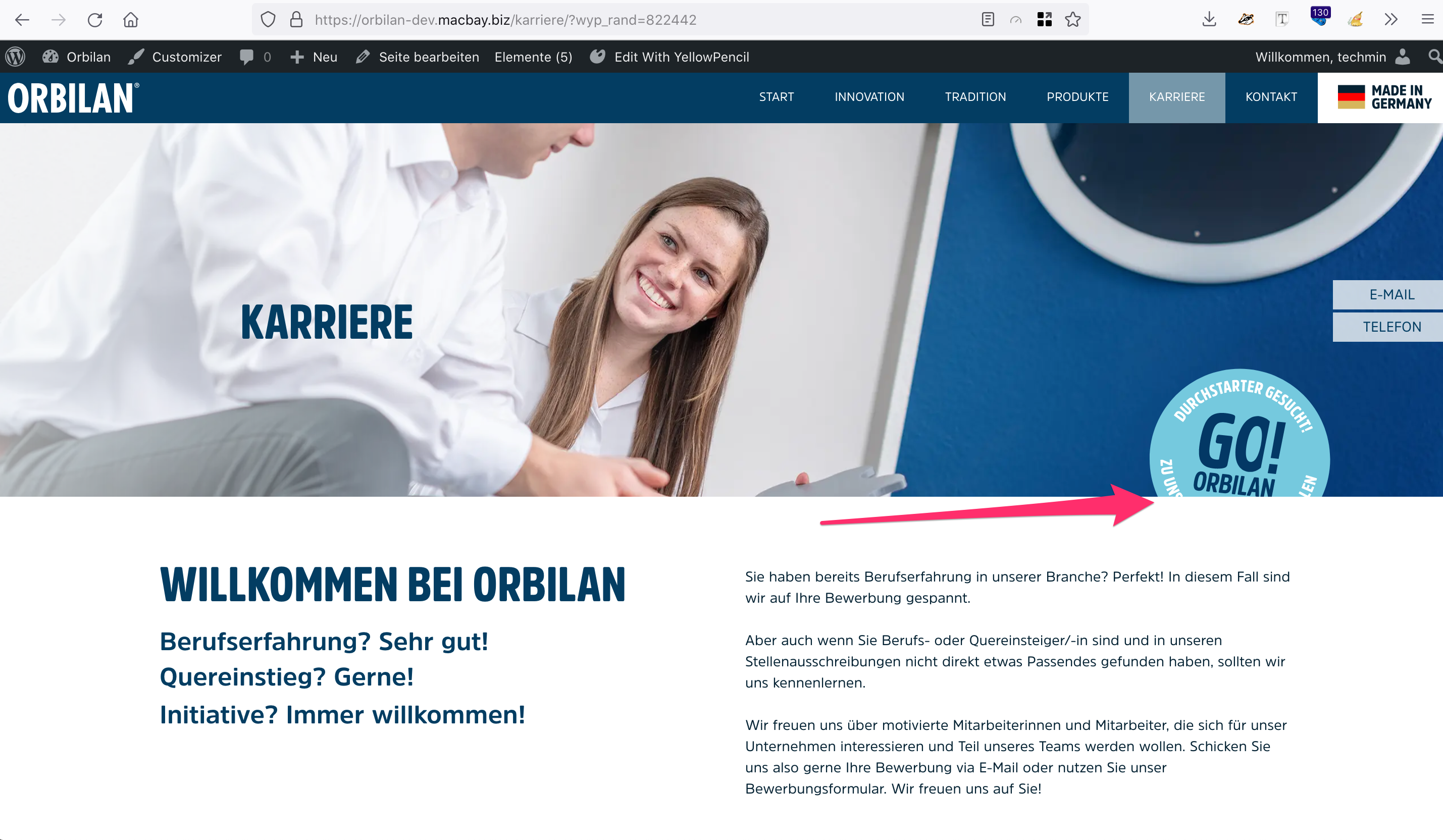
Here's how it is right now:
http://media.macbay.net/_support/Karriere_–_Orbilan_27A2F7FF.png
Here's the mockup again, was not clear before:
https://cloud.macbay.de/s/P93YWtarkaCnF7Z
The button must be positioned between header and content. Sorry, I don't know about how to describe this better 🙈
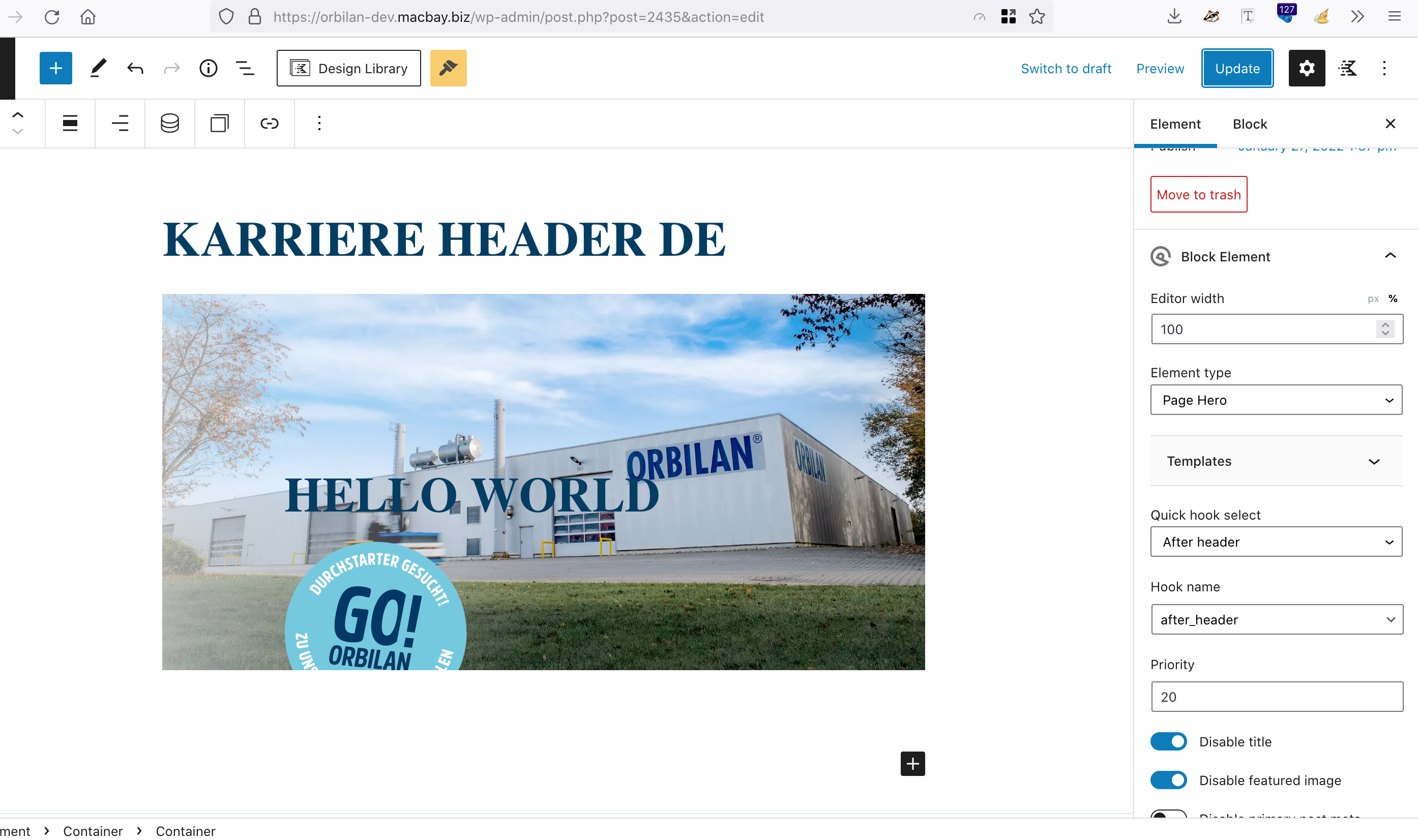
Can you please check how I have modified the Block-Element?
http://media.macbay.net/_support/orbilan-karriere-header_27A2F83C.png
Thank you in advance and kind regards,
Sascha
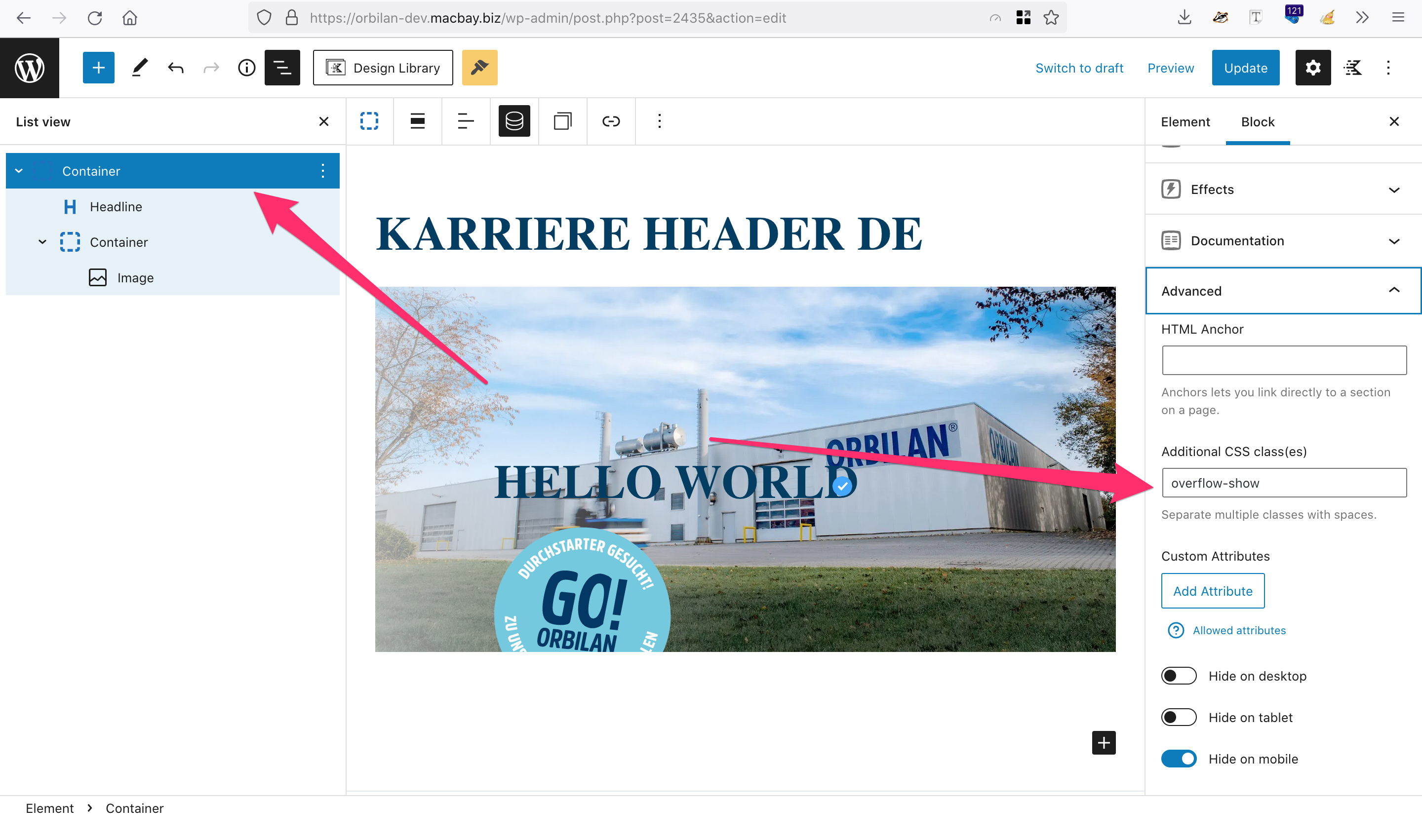
Select the Parent Container of your Hero, and in Advance > Additional CSS Class(es) add: overflow-show
Then add this CSS:
.gb-container.overflow-show {
    overflow: visible !important;
}Ah ok
I have added the CSS class to the container and applied the CSS via Simple CSS metabox on the page, but nothing has changed …
Furthermore, the button should also link to the #azubi anchor, but this also does not work
Where did you add the CSS ? I can't see it on the dev site
Here is where I have added the CSS class:
http://media.macbay.net/_support/orbil-karriere_27A3072D.png
Here is where I have added CSS code:
http://media.macbay.net/_support/orbilan-karriere_27A30768.png

Maybe I misunderstood your instruction?
Hmmm... i am not seeing the Simple CSS loading that.\
Can you try adding this to the Customizer > Additional CSS:
.gb-container.overflow-show {
    overflow: visible !important;
}That has worked! Awesome!
The only downside of using the Customizer CSS is now that CSS will be loaded on all pages, but since it's such a tiny code, it's not a problem at all.
However, since from now on I won't need to work on this DEV-site for the next few days, please feel free to troubleshoot why the CSS code has not worked when being added via Simple CSS.
Thank you so much for your help!
Sascha